How To Pair Apple Watch To New Phone

So, you've just upgraded your trusty old phone to a shiny new model, huh? Congrats! But now, you're looking at your Apple Watch, scratching your head, wondering, "How do I get...
So, you've just upgraded your trusty old phone to a shiny new model, huh? Congrats! But now, you're looking at your Apple Watch, scratching your head, wondering, "How do I get these two to play nice together?" Don't worry, I've been there. It's like introducing your old dog to a new cat - they might not hit it off immediately, but with a little patience and the right steps, they'll be best buddies in no time.
First Things First: Unpair, Then Pair
Before we get started, let's talk about un-pairing. It's like breaking up with your old phone - it's not you, it's me. You need to tell your Apple Watch to forget about your old phone. Don't worry, it won't cry or throw a tantrum. Just go to the Watch app on your old phone, tap on your watch at the top, then tap 'i', and finally, 'Unpair Apple Watch'.
Now, your Apple Watch is single and ready to mingle. But before you introduce it to your new phone, make sure your new phone is set up. It's like making sure the new cat's litter box is clean before bringing it home. Gross analogy, I know, but you get the picture.
Must Read
Setting Up Your New Phone
When you're setting up your new phone, it'll ask if you want to restore from a backup. Say yes, and choose the backup from your old phone. This way, all your data - including your Apple Watch settings - will be transferred to your new phone. It's like your new phone is just a temporary housing for your old data while the real estate (your Apple Watch) is being fixed up.
Time to Make It Official
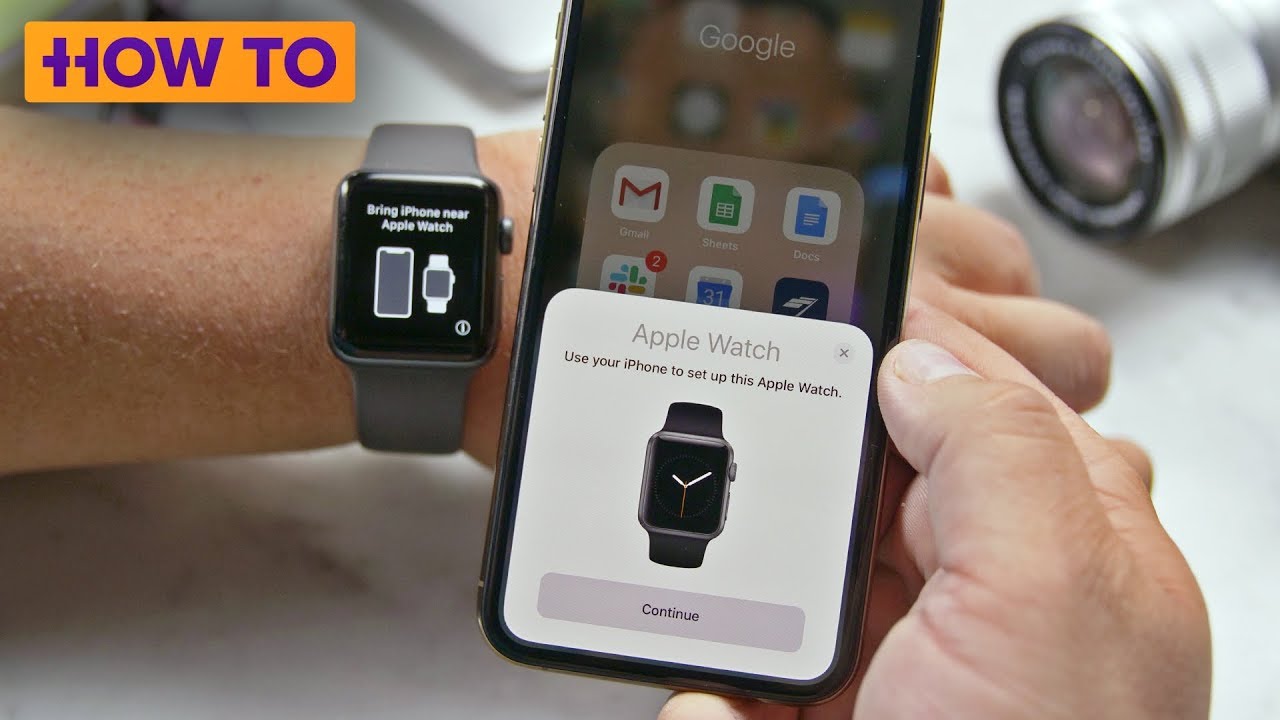
Once your new phone is all set up, it's time to pair it with your Apple Watch. It's like a first date - exciting, but a bit nerve-wracking. First, make sure your Apple Watch has enough battery life. You don't want it to pass out mid-introduction. Then, open the Watch app on your new phone. Tap on 'Pair New Watch', and hold your Apple Watch close to your phone's camera. The phone will scan the pairing animation on the watch. If it doesn't work on the first try, don't worry, it's not a sign of incompatibility. Just try again.
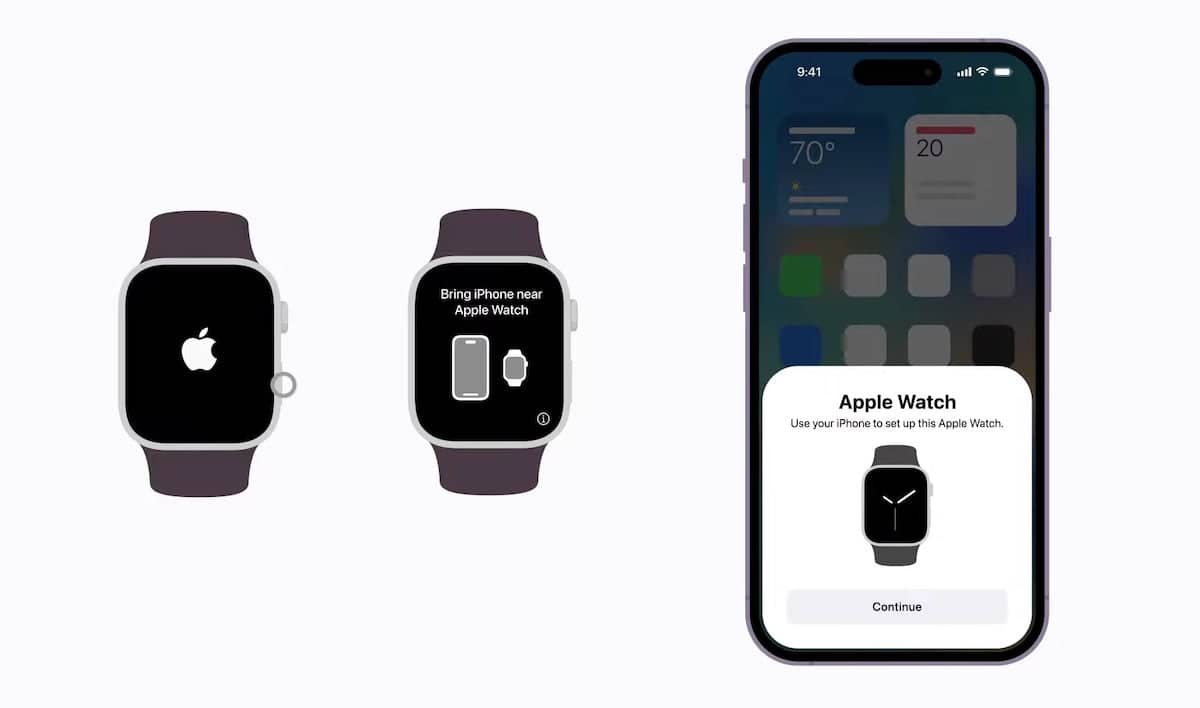 How to pair a new Apple Watch with an iPhone on iOS 16
Walkthrough: The Setup Process
After your phone recognizes your watch, you'll be walked through a series of screens to set up your Apple Watch. It's like a guided tour of a new city - exciting, but a bit overwhelming at first. You'll be asked to enter your passcode (if you have one), choose whether you want to use your iPhone's cellular plan, and set up features like Siri and Location Services.
Once you're through the setup, your Apple Watch will start to download all your apps. It's like moving into a new house and unpacking all your boxes. It might take a while, so be patient. In the meantime, you can go make a cup of tea or watch a cat video - you deserve it after all this hard work.
 How to Pair an Apple Watch to a New iPhone the Right Way
Troubleshooting: When Things Go Awry
Sometimes, even with the best intentions, things can go wrong. If your Apple Watch and new phone aren't playing nice, don't panic. First, make sure both devices are updated to the latest software. It's like making sure both of you are speaking the same language before trying to communicate.
If that doesn't work, try restarting both devices. It's like giving them a quick nap to reset their little circuits. If all else fails, you can always contact Apple Support. They're like the relationship counselors for your tech - they've seen it all and can help you work through any issues.
And That's a Wrap!
And there you have it! Your Apple Watch is now paired with your new phone, and they're living happily ever after. It's like a modern-day fairy tale, isn't it? So, go ahead, give your Apple Watch a little pat on the back (or a tap on the screen), and enjoy your new tech duo. They're ready to take on the world - or at least, your daily commute - together.
