How To Screen Share Iphone With Lg Tv

Mirror, Mirror on the (LG) Wall: Sharing Your iPhone's Screen Alright, buddy, let's dive into this screen-sharing business. You've got your trusty iPhone, and you're eyeing t...

Mirror, Mirror on the (LG) Wall: Sharing Your iPhone's Screen
Alright, buddy, let's dive into this screen-sharing business. You've got your trusty iPhone, and you're eyeing that shiny LG TV, thinking, "Wouldn't it be nice if we could share some screen time?" Well, guess what? We can!
First Things First: Check Your Compatibility
Before we get started, let's make sure your LG TV is AirPlay 2 compatible. Most LG TVs from 2018 onwards have this feature, but it's always a good idea to double-check. You can find this info in your TV's manual or by checking LG's website.
Now, if you're using an iPhone 8 or later, you're golden. These models support AirPlay 2, which is what we'll be using to share your screen. If you're not sure which iPhone you have, just check the model number in your Settings.
Must Read
Prep Your iPhone: Enable Screen Mirroring
Alright, let's get your iPhone ready. First, make sure both your iPhone and your LG TV are connected to the same Wi-Fi network. Then, follow these simple steps:
- Swipe down from the top right corner of your iPhone screen to open Control Center.
- Tap on the "Screen Mirroring" button. It looks like a TV screen with a triangle underneath.
- Choose your LG TV from the list of available devices.
And just like that, your iPhone's screen should appear on your LG TV. Isn't technology wonderful?
Now, Let's Get Interactive
So, you're sharing your screen, but you want to control your LG TV with your iPhone. Easy peasy! Just use the "Remote" app on your iPhone. If you don't have it, you can download it from the App Store.
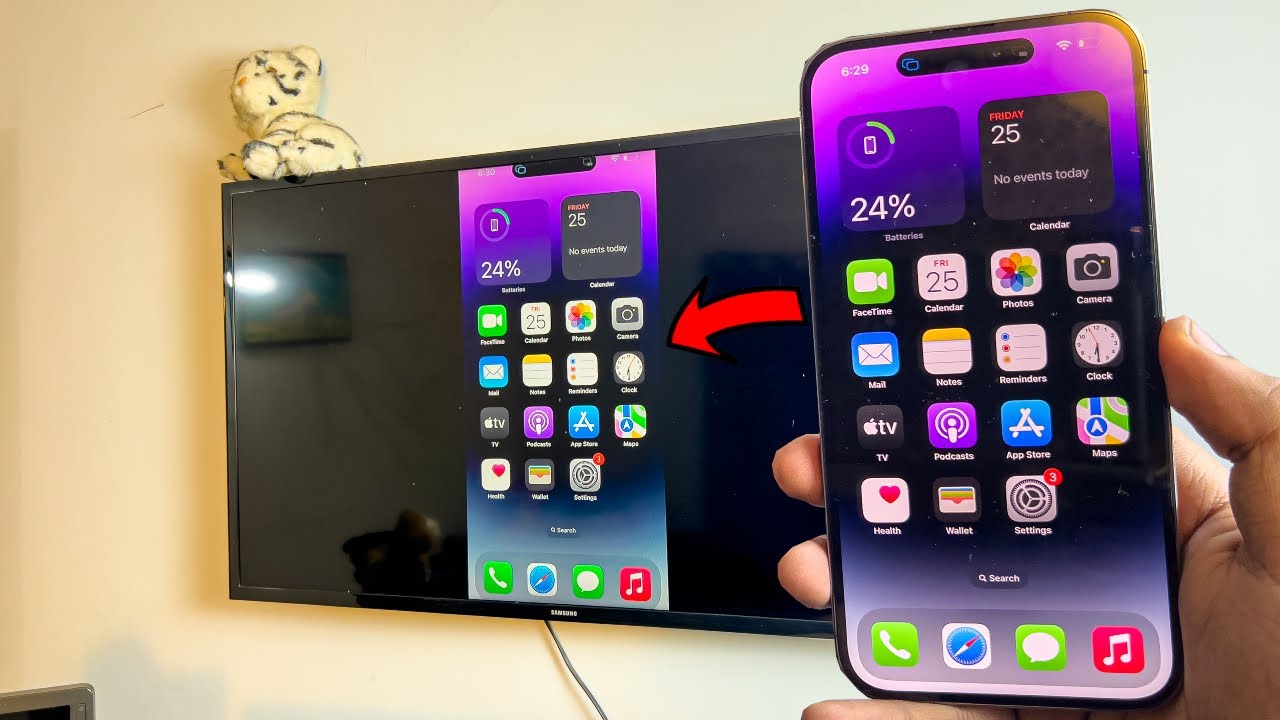 Share Iphone Screen On Tv – Copy Screen From Iphone – CREM
Once you're in the app, select your LG TV, and you'll be able to control the volume, switch inputs, and even turn your TV on or off. Pretty neat, huh?
Troubleshooting: When Things Don't Go as Planned
Alright, let's address the elephant in the room. Sometimes, technology can be a bit temperamental. If you're having trouble getting your iPhone to share its screen with your LG TV, here are a few things you can try:
- Make sure both devices are updated to the latest software.
- Restart both your iPhone and your LG TV.
- Check if there are any physical obstacles between your iPhone and your LG TV that could be interfering with the signal.
- Try connecting your iPhone to your LG TV using a different Wi-Fi network.
If all else fails, don't hesitate to reach out to Apple or LG's customer support. They're there to help!
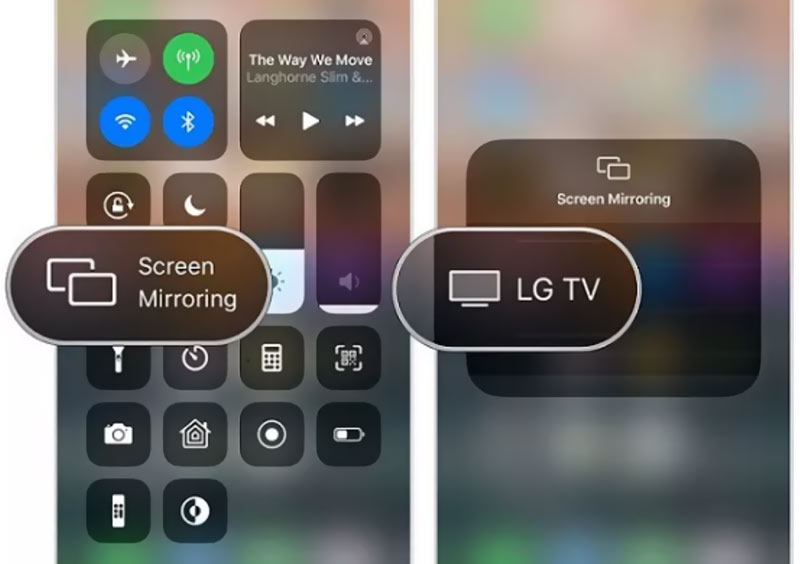 How to Mirror iPhone to LG TV - Screen Share iPhone to LG TV
And That's a Wrap!
And there you have it, folks! You're now a screen-sharing pro. Whether you're sharing photos, videos, or just want to show off your latest gaming skills, your iPhone and LG TV are now the best of friends.
So, go ahead, put on your favorite movie, show off your vacation photos, or even give your friends a virtual tour of your place. The world (or at least, your living room) is your oyster!
Happy screen sharing, and remember, with great power comes great responsibility. Don't go sharing anything you wouldn't want your mom to see. 😉
Until next time, stay tech-savvy, my friend!
