How To See Google Calendar On Iphone

Let’s be real—your iPhone is basically your personal assistant, but sometimes it acts like that one friend who hides their keys on purpose. You know, the one who *swears* they...

Let’s be real—your iPhone is basically your personal assistant, but sometimes it acts like that one friend who hides their keys on purpose. You know, the one who swears they left them on the counter but then finds them in the fridge at 2 AM? Google Calendar is no different. It’s there, it’s useful, but for some reason, it’s not always front and center like your favorite playlist or that one meme you save for tough days.
If you’re one of those people who swore you set a reminder for something important but then realized it’s been hiding in the shadows of your phone like a guilty secret, don’t worry—you’re not alone. The good news? Getting Google Calendar to play nice with your iPhone is easier than convincing your roommate to do the dishes without complaining. Here’s how to make it your new BFF.
Step 1: Find Google Calendar on Your iPhone
First things first, you gotta track it down. Open up your phone and head to the App Store. Type "Google Calendar" into the search bar—yes, it’s the same one you use for work, school, or that one friend’s birthday you almost forgot about. If it’s not already installed, hit that big blue Get button and wait for it to download. It’s like ordering takeout: you know it’s coming, but you’re too busy scrolling through memes to notice the time.
Must Read
Once it’s installed, open the app. If you’re logged into the same Google account you use for Gmail or YouTube, you’re in luck—it should already be set up. If not, you’ll need to log in like you’re trying to access your bank account (but way less suspiciously).
Pro Tip:
If you’re the type who has a dozen apps but can’t remember where you put your keys, bookmark the Google Calendar app on your home screen. No more digging through a graveyard of forgotten apps like a digital archaeologist.
Step 2: Sync It with Your iPhone’s Native Calendar
Now, here’s where things get a little tricky—unless you’re okay with having two calendars, one for Google and one for Apple. Because let’s be honest, juggling two calendars is like trying to balance a coffee cup on your head while riding a bike: it’s possible, but you’re gonna spill something eventually.
To avoid that disaster, you’ll need to sync Google Calendar with your iPhone’s default Calendar app. Open the Settings app on your phone and scroll down to Accounts and Passwords. Tap Add Account and select Google. If you’re not already logged in, do that first—it’s like logging into your Wi-Fi, but with slightly more personal stakes.
Pro Tip:
If you see a warning about Google Calendar not syncing, don’t panic. Sometimes it’s just being stubborn. Try logging out and back in, or check if you’ve got two-factor authentication turned on (which, by the way, is a good idea unless you enjoy mystery phone calls from your bank).
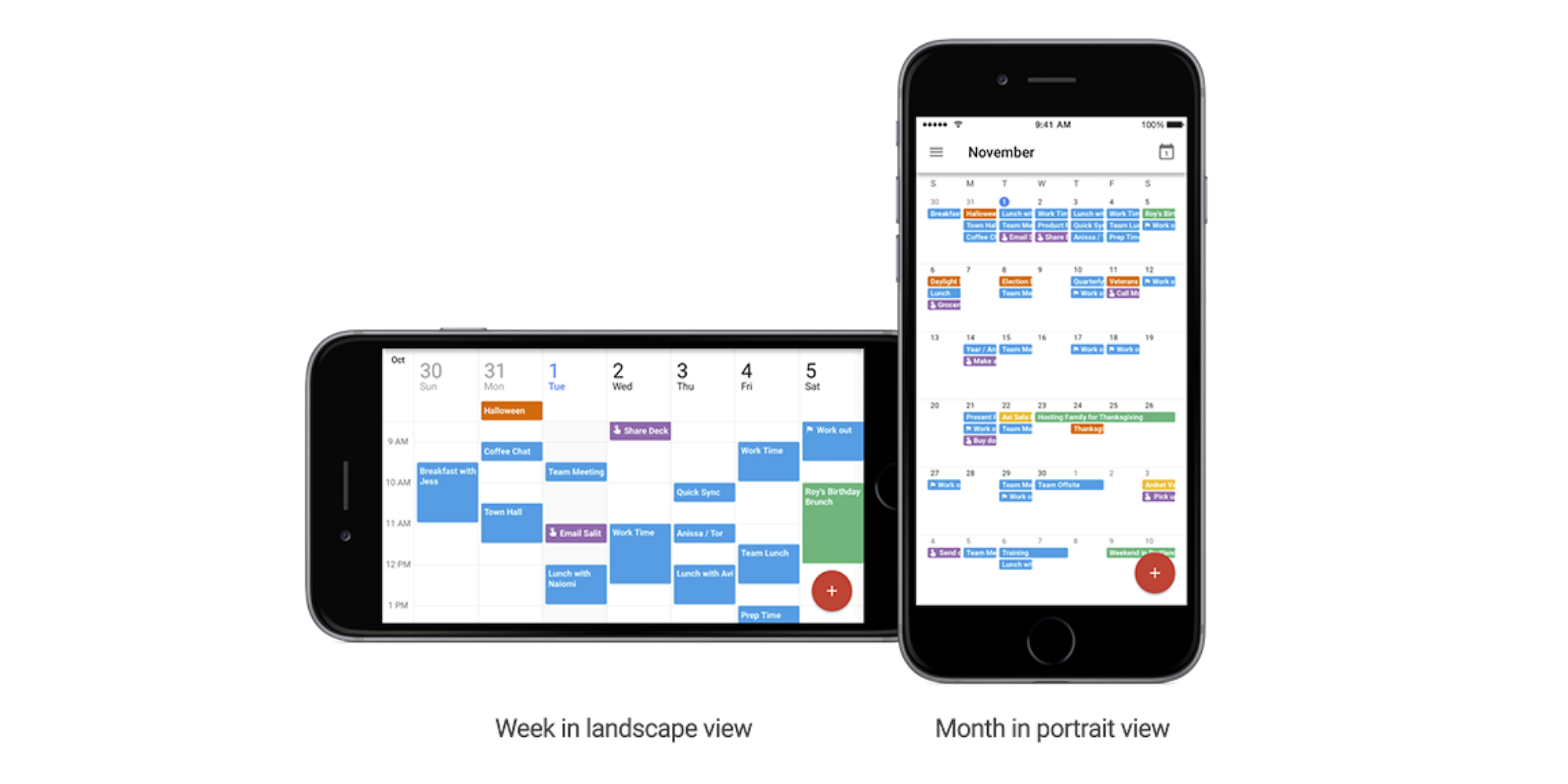 Google Calendar for iPhone adds Spotlight Search, month view, week view
Step 3: Customize Your Calendar Like a Pro
Once it’s synced, you can start playing around with your calendar like it’s a digital Lego set. Open the Google Calendar app and you’ll see all your events, meetings, and whatever else you’ve scheduled. To make it work for you, not against you, hit the three little lines in the top-left corner (yes, the ones that look like they’re plotting something) and select Settings.
Here’s where you can tweak things like notifications, colors, and even how often your calendar syncs. If you’re the type who sets reminders but then ignores them like a bad Tinder date, you can adjust the notification settings so they’re not as aggressive as your ex’s last text. Turn on "Reminders" and "Event Notifications" to make sure you don’t miss anything important—unless, of course, you’re the kind of person who thrives on chaos.
Pro Tip:
Use different colors for different calendars. For example, make work events blue (because, let’s be real, they’re as boring as a Monday meeting), personal stuff pink (because life’s too short for boring colors), and gym appointments green (because you will go, you just need a little motivation). It’s like dressing up your schedule for a first date—you want to look your best.
Step 4: Access Google Calendar from Your iPhone’s Default Calendar
Now that everything’s synced, you can actually use the Calendar app that comes with your iPhone without feeling like you’re cheating. Open it up, and you should see your Google Calendar listed alongside any other accounts you’ve added (like Outlook or that one weird work calendar no one uses).
If you don’t see it, don’t worry—it might be hidden under a different name like "Google" or "Calendar." Tap on it to expand it, and voila! All your events from Google Calendar will appear right there. It’s like finding a lost sock in the dryer—you didn’t expect it to be there, but now you’re glad it is.
 How To Synchronize Google Calendar With Iphone - Preschool Calendar
Pro Tip:
If you’re the type who likes to keep things tidy, you can hide calendars you don’t use by tapping the three dots next to them and selecting "Hide." This way, your main calendar stays clean, and you don’t have to sift through a bunch of stuff you’ll never look at—unless, of course, you’re a hoarder at heart.
Step 5: Make It Work for You
Now that Google Calendar is officially part of your iPhone family, it’s time to make it work for you. Start by adding events directly from your phone—whether it’s a dentist appointment, a friend’s birthday, or that time you promised yourself you’d finally learn to cook (and then forgot about it until it was too late).
Use the add event button (it looks like a plus sign, because of course it does) and fill in the details. You can even set recurring events, like your weekly gym session or that standing date with your book club. It’s like setting up a robot butler for your schedule—except this one doesn’t judge you for eating cereal for dinner.
Pro Tip:
If you’re the type who sets reminders but then ignores them, try using Google Calendar’s "Working Hours" feature. It’s like setting boundaries for your schedule—you can choose when you’re available and when you’re not, so you don’t get overwhelmed with notifications when you’re trying to enjoy a quiet evening (or a nap).
And if all else fails, just remember: your calendar is there to help you, not to stress you out. It’s like that one friend who always shows up with snacks—you might not need them every time, but you’re glad they’re there when you do.
