Will Google Calendar Sync With Iphone

So, there I was, juggling my iPhone and a cup of coffee, trying to figure out why my Google Calendar wasn't syncing with my iPhone. I mean, come on, it's the 21st century, sho...

So, there I was, juggling my iPhone and a cup of coffee, trying to figure out why my Google Calendar wasn't syncing with my iPhone. I mean, come on, it's the 21st century, shouldn't our tech just know we want our lives to be organized in one place?
Anyway, I decided to dive into the world of syncing, and guess what? It's not as complicated as you might think. So, grab a coffee (or tea, I don't discriminate), and let's figure this out together.
First Things First: Why Sync?
Alright, let's start with the basics. Why should you sync your Google Calendar with your iPhone? Well, for starters, it's a sanity saver. You'll have all your appointments, meetings, and reminders in one place. No more double-booking or forgetting important dates. It's like having a personal assistant, but without the fancy paycheck.
Must Read
Plus, syncing makes life on the go a breeze. You can check your schedule, set reminders, and even create new events all from your iPhone. It's like having your very own, always-updated, digital planner. Who needs a physical one these days, right?
Now, Let's Get Technical: How to Sync
Alright, enough chit-chat. Let's get down to business. Here's how you can sync your Google Calendar with your iPhone in just a few simple steps:
First, make sure you're logged into your Google account on your iPhone. If you're not, head to Google's homepage, tap 'Sign In', and enter your details.
Next, open the 'Settings' app on your iPhone. It's the one with the gears icon. Once you're in, tap on 'Calendar' (you might need to scroll down a bit to find it).
In the 'Accounts' section, you should see your Google account listed. Tap on it. If you don't see it, tap 'Add Account', select 'Google', and follow the prompts to add your account.
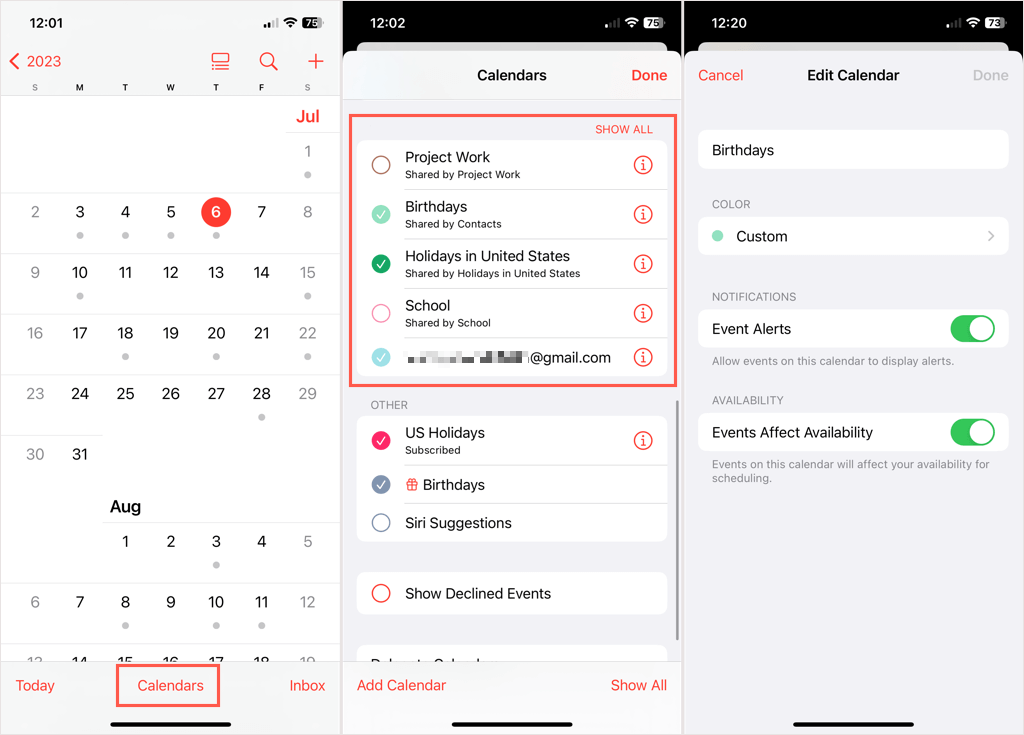 How to Add and Sync Google Calendar to Your iPhone and iPad
Once you're in your Google account settings, make sure 'Calendar' is turned on. If it's not, tap the toggle switch to turn it on. While you're here, you can also choose which calendars you want to sync. Just tap 'Done' when you're finished.
Now, head back to your home screen and open the 'Calendar' app. You should see your Google Calendar events and appointments right there, all synced up and ready to go.
And there you have it! Your Google Calendar should now be syncing with your iPhone. Easy peasy, right?
But What If It's Not Working?
Alright, so you've followed the steps, but your calendar still isn't syncing. Don't panic! Here are a few things you can try:
Make sure you have a stable internet connection. Syncing won't work if your iPhone can't connect to the internet.
Check your Google account settings on your iPhone. Make sure you're logged in with the correct account and that the calendar is turned on.
 How To Sync Google Calendar To iPhone | Macworld
Try signing out of your Google account and then signing back in. Sometimes, a simple logout and login can fix the issue.
If all else fails, you can try deleting the Google Calendar app and then reinstalling it from the App Store. Just make sure to backup your data first, just in case.
If you've tried all these troubleshooting steps and you're still having issues, it might be time to reach out to Google or Apple for some extra help. They're usually pretty good about sorting things out.
And That's a Wrap!
And there you have it, folks! Your Google Calendar should now be syncing with your iPhone like a dream. No more missed appointments, no more double-booking, and no more stress. It's like having a little slice of heaven in your pocket.
So, go forth and organize your life! And remember, if you ever have any questions or need a little extra help, don't hesitate to ask. After all, that's what friends are for, right?
Until next time, stay organized, stay sane, and happy syncing!
