Merge Multiple Sheets Into One Sheet

Taming the Spreadsheet Beast: Merge Multiple Sheets into One Alright, let's picture this: You're at your favorite coffee shop, laptop open, trying to make sense of your finan...
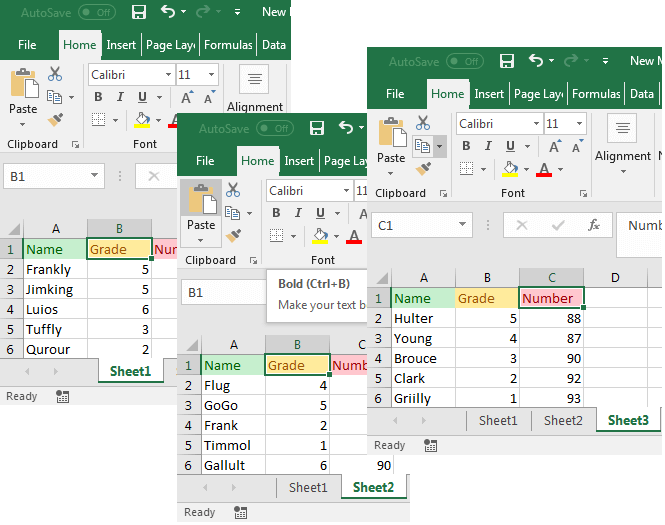
Taming the Spreadsheet Beast: Merge Multiple Sheets into One
Alright, let's picture this: You're at your favorite coffee shop, laptop open, trying to make sense of your financials. You've got sheets for income, expenses, savings, investments - it's like trying to herd cats. Now, imagine you could wrangle all those sheets into one. That's what we're going to learn today, folks. It's like going from a chaotic garage sale to a neatly organized yard sale. Who wouldn't want that?
Why Bother, You Ask?
Well, merging sheets isn't just about making your spreadsheet look like a model student. It's about making your life easier. Imagine you're planning a big trip. You've got sheets for flights, hotels, activities, and budget. Merging them lets you see the big picture at a glance. It's like going from a jumbled map to a clear, easy-to-follow route. Plus, it's a great way to spot patterns and make informed decisions. It's like having a personal finance detective on your team.
Let's Get Started!
Alright, let's assume you're using Excel. First, you'll need to have all your sheets in one workbook. If they're not, just open them all and save them as one. Easy peasy!
Must Read
Merging the Sheets
Now, here's where the magic happens. Select the data you want to merge from each sheet. Don't worry, you can always adjust later. Then, click on the 'Home' tab, find the 'Clipboard' group, and click on 'Copy'. Now, go to the sheet where you want to merge everything. Click on cell A1 (that's the top-left cell), then go to the 'Home' tab again, find the 'Clipboard' group, and click on 'Paste'. Voila! Your data is now in one place.
 Merge Multiple Excel Files Into One Sheet Using Command Prompt
But wait, you might say. What if my data has headers? No worries! Just select the data and headers, then click on 'Paste Special' in the 'Clipboard' group. A box will pop up. Select 'Values' and 'Transpose', then click 'OK'. Your headers will stay put, and your data will be all neat and tidy.
Cleaning Up the Mess
Now, you might have some duplicate data or blank rows. To get rid of them, select your data, then click on the 'Home' tab, find the 'Editing' group, and click on 'Remove Duplicates'. A box will pop up. Make sure your columns are correct, then click 'OK'. For blank rows, just select your data, go to the 'Home' tab, find the 'Editing' group, and click on 'Find & Select', then 'Go To Special', and finally 'Blanks'. Click 'Delete' and say goodbye to those pesky blank rows.
 Combine Multiple Sheets into One Sheet in Excel | Merge Data in Excel
Making It Pretty
Alright, your data is all merged and clean. Now, let's make it look nice. Use tables, conditional formatting, and charts to turn that raw data into a work of art. It's like turning a blank canvas into a masterpiece. And the best part? You can do it all in just a few clicks.
You Did It!
And there you have it! You've just merged multiple sheets into one. You've saved time, made your life easier, and maybe even discovered some interesting patterns in your data. So, the next time you're at that coffee shop, you can sip your latte with a smile, knowing your financials are all in order. And who knows? You might even start looking forward to spreadsheet time. Now, that's a transformation!
