How To Factory Reset A Acer Computer

Ever felt like your Acer computer's been through more drama than a reality TV show? You're not alone. Between the cluttered desktop, the slow startup, and the mysterious pop-u...

Ever felt like your Acer computer's been through more drama than a reality TV show? You're not alone. Between the cluttered desktop, the slow startup, and the mysterious pop-ups, it's like your once-spotless PC has turned into a digital hoarder. That's where a factory reset comes in, like a fresh start for your tech buddy.
Why Bother with a Factory Reset?
Imagine your computer's like a bustling city. Every app, file, and setting is a building, and each one takes up space and resources. Over time, this city can get crowded and chaotic, slowing down your PC and making it harder to find what you need. A factory reset is like bulldozing that city and rebuilding it from scratch, giving your computer a clean slate to work with.
But here's the thing: a factory reset isn't just about speed. It's also about security. Think of it like changing the locks on your house after a break-in. When you reset your computer to its factory settings, you're kicking out any unwanted guests - like malware or viruses - and making sure only you have the key.
Must Read
Before You Start: Back Up Your Stuff
Before you dive into the reset, you've got to make sure your precious data doesn't get left behind. Think of it like packing for a move - you wouldn't just throw everything in boxes willy-nilly, right? So, grab a external hard drive or a cloud service, and back up your important files. That way, they're safe and sound while your computer's getting its fresh start.
What to Back Up
Now, you might be thinking, "What exactly should I back up?" Well, anything you don't want to lose is a good start. That includes:
- Documents: Like that novel you've been writing or the family photos you've been meaning to organize.
- Music and Videos: All those tunes and movies you've collected over the years. Remember, digital piracy is a thing, so make sure you've got the rights to what you're backing up.
- Bookmarks: Those favorite websites you've been meaning to visit again. You can export them from your browser.
- Email: If you use an email client like Outlook, you'll want to back up your emails and contacts.
Now, Let's Get Resetting
Alright, you've packed up your digital belongings. Now it's time to say goodbye to the old and hello to the new. Here's how to factory reset your Acer computer:
Using Windows 10
1. Click on the Start menu and select the gear icon to open Settings.
2. Click on 'Update & Security', then 'Recovery'.
 How to Factory Reset Acer PC Or Laptop Without Password - YouTube
3. Under 'Reset this PC', click on 'Get started'.
4. You'll be asked if you want to keep your files. Since you've already backed them up, select 'Remove everything'.
5. You'll be given the option to clean the drive. If you're planning on selling or giving away your computer, select 'Just remove my files'. If you want to make sure no one can ever retrieve your data, select 'Remove files and clean the drive'.
6. Click 'Reset' to start the process. Your computer will restart and the reset will begin. It might take a while, so grab a snack or a good book.
Using Acer's Recovery Management
If your Acer computer came with a recovery partition, you can use Acer's Recovery Management to reset it. Here's how:
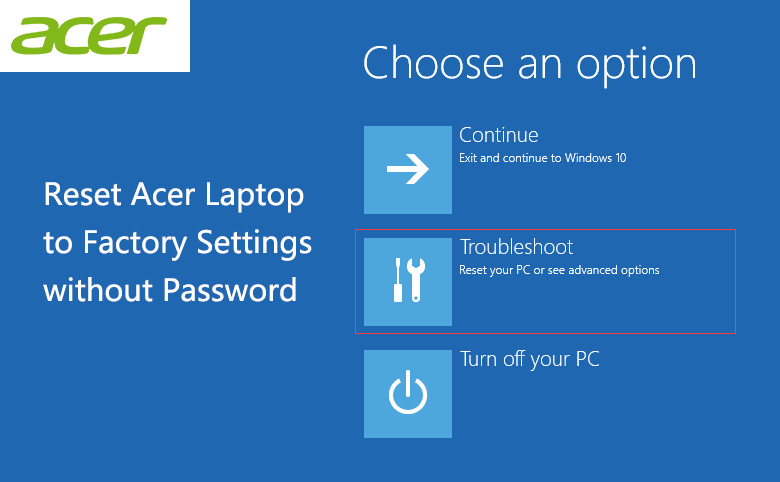 3 Ways to Reset Acer Laptop to Factory Settings without Password
1. Restart your computer and press the F10 key repeatedly until you see the Acer logo and the message 'Press F10 to enter BIOS Setup'.
2. In the BIOS Setup Utility, use the arrow keys to select 'Exit' and then 'Acer Recovery Manager'.
3. Follow the on-screen instructions to reset your computer. You'll be asked if you want to keep your files, so remember to select 'No' since you've already backed them up.
Welcome Home, Fresh Start
And there you have it! Your Acer computer is now as good as new, ready to start a new chapter in its digital life. Just remember to keep it tidy this time, okay? No more digital hoarding!
Now, go ahead and reinstall your favorite apps, set up your desktop just the way you like it, and maybe even give your computer a fun new name. It's earned it. And who knows? Maybe next time you'll think twice before downloading that mysterious attachment or clicking that sketchy link. After all, you've got a fresh start - and so does your computer.
