How Do I Log Out Of My Google Account

Alright, buddy, let's talk about something that's been bugging you. You're logged into your Google account on your laptop, tablet, and phone, and you're starting to feel like...

Alright, buddy, let's talk about something that's been bugging you. You're logged into your Google account on your laptop, tablet, and phone, and you're starting to feel like you're in a real-life episode of Black Mirror. You're not alone, pal. We've all been there. It's time to take control and learn how to log out of your Google account. Don't worry, it's easier than trying to explain quantum physics to a goldfish.
Why Log Out, You Ask?
Well, there are a few reasons. First, security. You don't want little Timmy from next door snooping through your emails while you're making dinner. Second, if you're using a public computer, logging out prevents anyone from accessing your personal info. And third, it's just good digital hygiene. Think of it like brushing your teeth. You wouldn't want to go around with Google crumbs all over your browser, would you?
Logging Out on a Computer
Alright, let's dive into the main event. First things first, make sure you're on the Google homepage. If you're not, well, you might want to check if you're still on this planet. Once you're there, look up. No, not at the ceiling. I mean, look at the top right corner of your screen. See that little profile picture or initial? That's your Google account. Click on it. It's like clicking on a friend's profile pic, but with fewer cat memes.
Must Read
Now, a dropdown menu will appear. It's like a magic trick, but with less rabbits and more options. Scroll down until you see 'Sign out'. Click on it. Boom! You're out. It's that simple. If you want to make sure, look at the top right corner again. If it says 'Sign in', you're good to go. If it's still showing your profile, you might want to try again. Maybe you blinked and missed it.
Logging Out on a Mobile Device
Now, let's talk about those pesky little devices that we can't seem to put down. If you're on an Android device, open the Google app. Tap on your profile picture at the top right. Then, tap on 'Manage your Google Account'. Scroll down and tap on 'Sign out of all accounts'. And just like that, you're logged out. It's like magic, but with less wand-waving and more swiping.
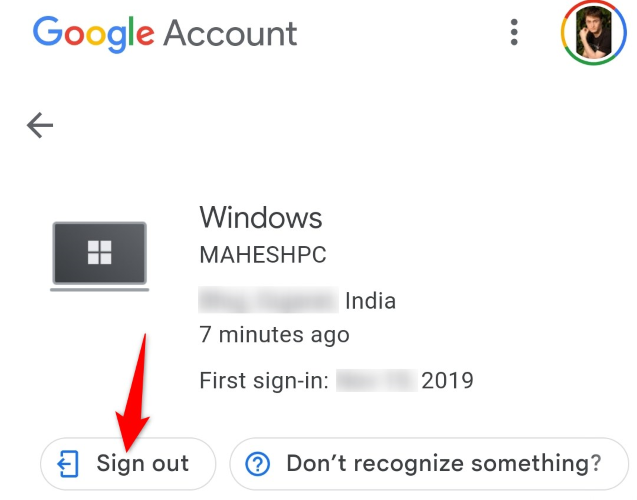 How to Sign Out of Google on All Your Devices
If you're on an iOS device, it's a bit different. Open the Settings app, then scroll down and tap on 'Google'. Tap on the account you want to sign out of, then tap on 'Sign out'. Easy peasy, lemon squeezy. Now, you can hand your phone to little Timmy without worrying about him reading your emails about your secret love for reality TV.
But Wait, There's More!
You might be wondering, 'What if I want to log out of all devices at once?' Well, Google's got you covered. Here's how:
1. Go to your Google Account on a computer. 2. In the left navigation panel, click 'Security'. 3. Under 'Third-party apps with account access', click 'Manage third-party access'. 4. Next to the account you want to sign out of, click 'Remove Access'.
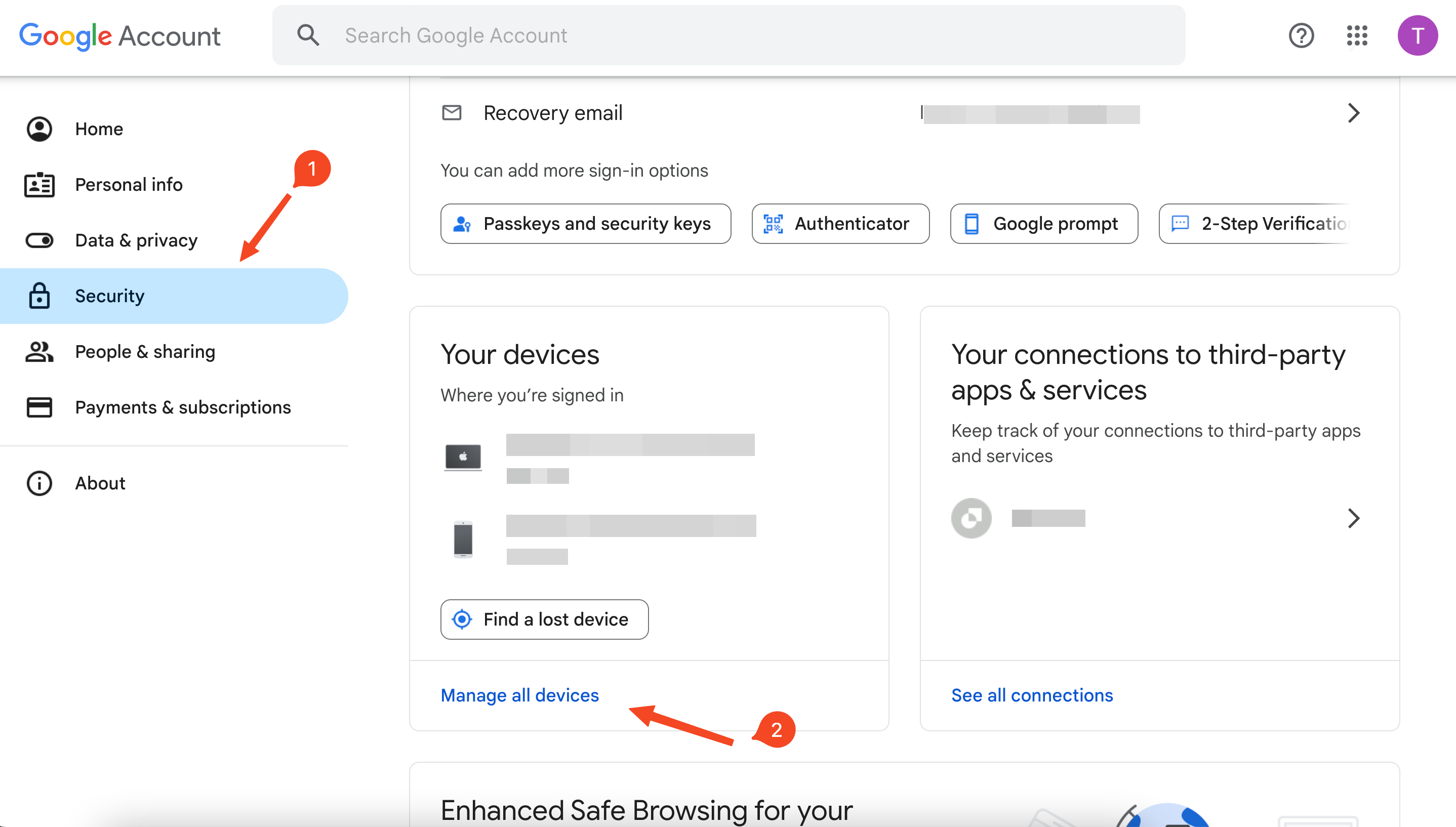 Comment se déconnecter de Gmail sur n’importe quel appareil
And just like that, you're logged out of all devices. It's like you're a secret agent, leaving no trace behind. But instead of a tuxedo, you're wearing your favorite pajamas. Which, let's be honest, is way more comfortable.
You Did It!
Congratulations, you've successfully logged out of your Google account. You should be feeling like a digital ninja right about now. Remember, logging out is like putting on sunscreen. It might seem like a hassle at first, but it's a small step that can make a big difference in protecting your online presence.
So, the next time you're logged in and feeling a bit exposed, don't panic. Just follow these simple steps and you'll be safe and sound. And who knows, maybe you'll even start enjoying the little digital breaks. After all, even superheroes need a day off. Until next time, stay safe and keep your digital house in order. Over and out.
