How Do I Logout Of My Google Account

Alright, gather 'round, folks. Let's talk about something that's as simple as it is mind-boggling - logging out of your Google account. Now, you might be thinking, "Why on ear...
Alright, gather 'round, folks. Let's talk about something that's as simple as it is mind-boggling - logging out of your Google account. Now, you might be thinking, "Why on earth would I need help with that? It's just a click away!" Well, my friend, you'd be surprised how many of us have been walking around with our Google accounts wide open, like a virtual barn door in a hurricane. So, let's dive in, shall we?
Why Bother Logging Out?
First things first, why should you care about logging out? Well, imagine you're at a library (yes, they still exist, and no, they're not just places where hipsters go to take Instagram photos). You've got your nose buried in a juicy novel, and suddenly, someone walks up to your book and starts reading over your shoulder. Not cool, right? Same thing applies to your Google account. When you're logged in, anyone with access to your device can snoop around in your emails, docs, or even change your search settings to something... less than savory.
Now, you might be thinking, "But I'm the only one who uses my device!" Well, let me tell you a little secret. According to a study by the University of Cambridge, ants can count. Yes, you read that right. Ants. Can. Count. Now, if ants can count, you can bet your bottom dollar that your device is being used by more than just you. Kids, partners, roommates, pets - they're all potential snoopers. So, it's best to keep your Google account locked up tight when you're not using it.
Must Read
How to Log Out - The Easy Way
Alright, enough with the horror stories. Let's get down to business. Logging out of your Google account is as easy as falling off a log. Here's how:
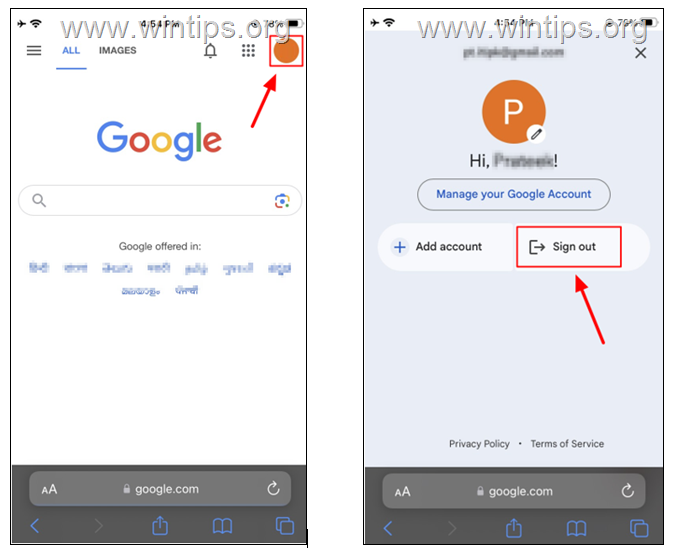
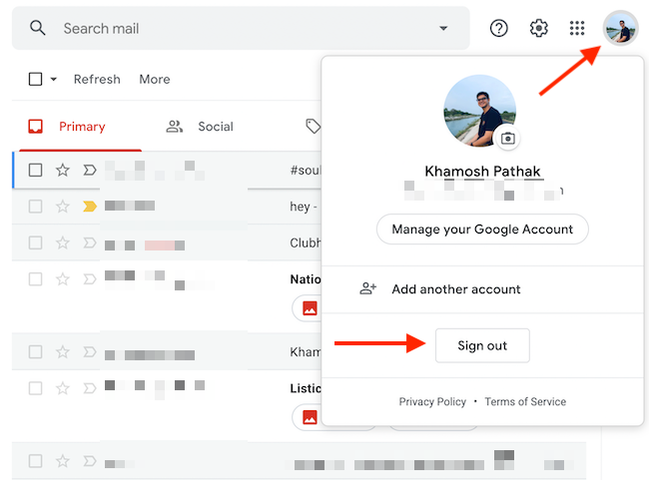
- Click on your profile picture or initial in the top-right corner of any Google page. It's like finding a needle in a haystack, but in this case, the haystack is the entire internet, and the needle is your profile picture.
- From the dropdown menu that appears, click on the Account option. It's usually at the bottom of the list, so you might have to do a little scrollin', a little rollin', a little... well, you get the picture.
- On the Account page, you'll see a big, fat, juicy button that says Sign out. Click it. Go on, don't be shy. It's not a trap. I promise.
And just like that, you're logged out. It's like magic, isn't it? Well, not really. It's just Google doing its thing. But hey, let's not burst the bubble of wonder, shall we?
 How to Sign Out of Gmail
But Wait, There's More!
Now, you might be thinking, "That's all well and good, but what if I want to log out of just one account, but not all of them?" Well, my friend, Google's got you covered. Here's how:
- Follow steps 1 and 2 from the previous section. You're a pro at this by now, right?
- Instead of clicking on Sign out, click on the Manage accounts on this device option. It's like choosing the blue pill or the red pill, but with less existential crisis and more Google accounts.
- On the next page, you'll see a list of all the Google accounts that are currently signed in on your device. Click on the three vertical dots next to the account you want to log out of, and select Remove. And just like that, you're logged out of that account, but still logged in to the others. It's like having your cake and eating it too. Sort of.
Pretty neat, huh? Now, you might be thinking, "But what if I want to log out of all my Google accounts, everywhere, all at once?" Well, Google's got an app for that too. Sort of. Here's how:
 How to Sign Out of Gmail on Any Device or Remotely (2026)
Logging Out of All Your Google Accounts, Everywhere, All at Once
Alright, so there's no magic button for this one. But there is a way to log out of all your Google accounts, everywhere, all at once. It's a bit of a process, but bear with me. Here we go:
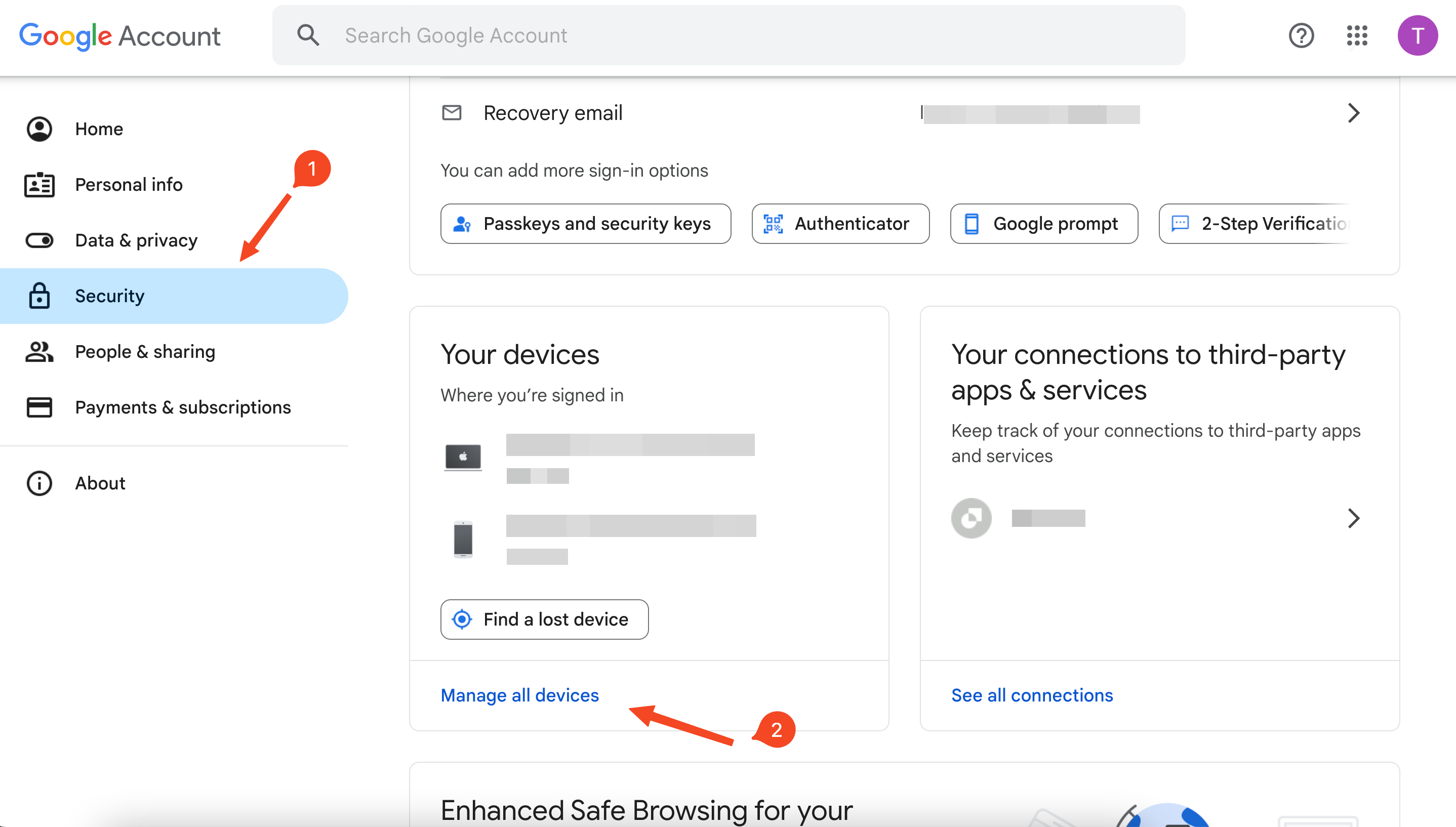
- Head on over to this page. It's like the Google version of a control room, where you can see all the devices that are currently signed in to your account.
- On this page, you'll see a list of all the devices that are signed in to your Google account. Click on the three vertical dots next to any device you want to log out of, and select Sign out. Repeat this step for every device on the list. It's like a game of whack-a-mole, but with Google accounts instead of moles.
- Once you've logged out of all the devices, head on back to the device activity page. You should see a big, fat, juicy button that says Sign out of all other web sessions. Click it. And just like that, you're logged out of all your Google accounts, everywhere, all at once. It's like the Google version of a nuclear option. But with less fallout and more... well, you get the picture.
And there you have it, folks. You're now a certified Google logout pro. You can log out with the best of them. Heck, you could probably log out in your sleep at this point. So, the next time you're at a café, and you see someone struggling to log out of their Google account, don't be a stranger. Lend a helping hand. After all, we're all in this digital world together.
Now, if you'll excuse me, I've got some logging out of my own to do. Until next time, folks!
