How Do I Retrieve My Photos From Icloud

Hey there, tech-savvy friend! So, you've found yourself in a bit of a pickle, have you? You've got all these amazing memories stored up in the cloud, but you're drawing a blan...
Hey there, tech-savvy friend! So, you've found yourself in a bit of a pickle, have you? You've got all these amazing memories stored up in the cloud, but you're drawing a blank on how to get them back down to earth. Well, grab a cuppa, get comfy, and let's dive into this together, yeah?
First Things First: Log In, Duh!
Alright, before we start our little adventure, we need to get you logged into your iCloud account. Now, I'm not gonna hold your hand through this part - I trust you know your way around a keyboard. So, pop over to iCloud.com, and let's get this show on the road.
Where Do My Precious Photos Hide?
Once you're in, you'll see a whole bunch of colorful icons staring back at you. We're after the one that looks like a camera, with a little mountain range for good measure. Click on that bad boy, and voila! You're now staring at your very own photo gallery in the sky.
Must Read
Now, Let's Get Those Pics on Your Screen
So, you've found your photos, but they're still not on your actual device. Boo! Let's fix that. See that little down arrow at the top of the screen? Click on it, and you'll see a dropdown menu. Here's where things get a tad tricky, depending on what you're after.
Downloading the Whole Shebang
If you want to download every single photo and video, click on "Download All". Easy peasy, right? Just sit back, grab another sip of your coffee, and watch the magic happen. But hold your horses! This could take a while if you've got a ton of stuff up there. Patience, grasshopper.
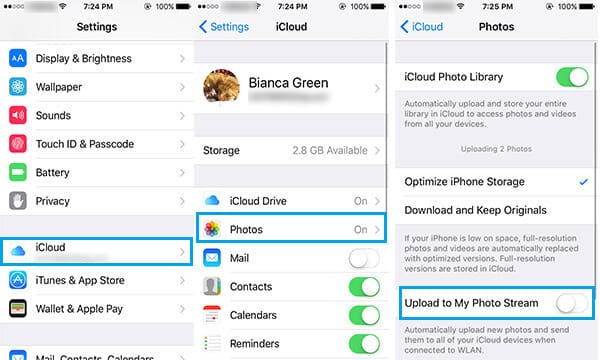 [Solved] How Do I Retrieve Photos from iCloud to My iPhone
Picking and Choosing
But what if you don't want to download everything? No worries, we can be a bit more selective. Click on "Select Photos" instead. Now, you can choose individual photos or videos, or even entire albums. Once you've made your picks, click that down arrow again, and this time, choose "Download".
But Wait, There's More!
Alright, so you've got your photos back, and you're feeling pretty chuffed about it. But what if you want to make sure they're always backed up? Well, friend, it's time to talk settings.
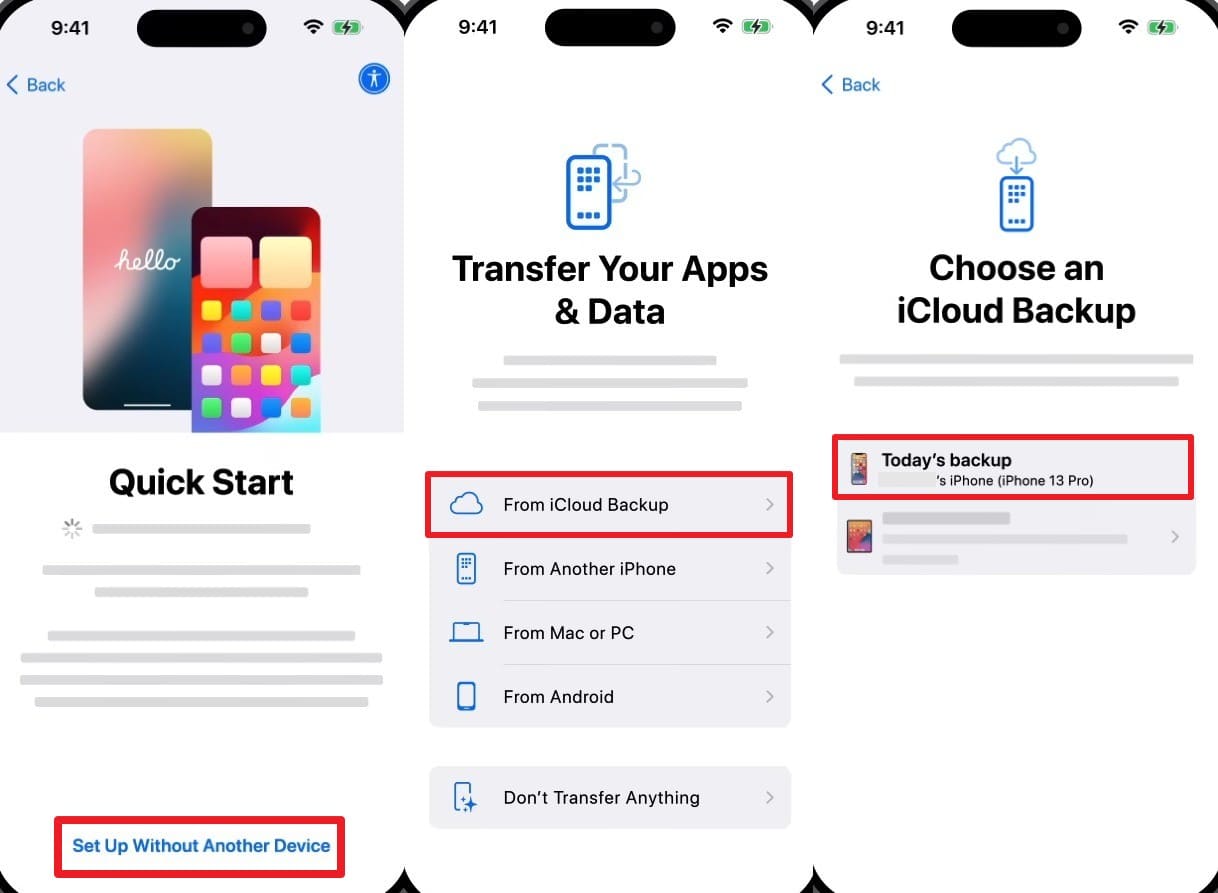
 How to Retrieve Data from iCloud Backup in 2026 (Full Guide)
Click on that little gear icon in the top right corner, and you'll see a bunch of options. We're after "Preferences". In there, you'll find a section called "iCloud Photo Library". If you turn that on, every photo you take will automatically be uploaded to iCloud. No more worrying about losing your precious memories - they'll always be safe and sound in the cloud.
And That's a Wrap!
And there you have it, folks! You're now a certified iCloud photo retriever. Was it so hard? I hope not. Remember, if you ever find yourself in a pickle again, just give me a shout. We'll grab another coffee and tackle it together.
Until next time, stay tech-savvy, and keep those memories safe!
