How To Cancel My Icloud Subscription

So, You've Decided to Ditch the Apple? Here's How to Cancel Your iCloud Subscription! Alright, folks, let's dive into this techy tale. You've been swimming in the iCloud sea,...
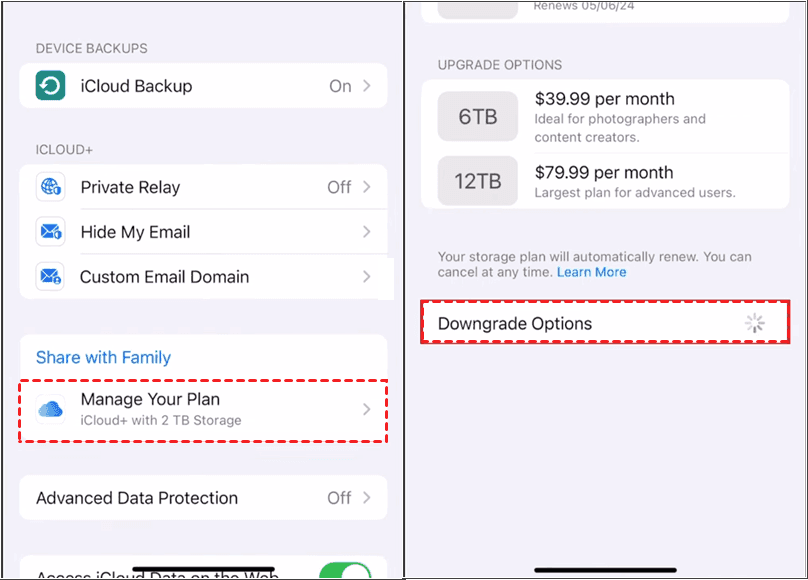
So, You've Decided to Ditch the Apple? Here's How to Cancel Your iCloud Subscription!
Alright, folks, let's dive into this techy tale. You've been swimming in the iCloud sea, but now you're ready to spread your wings, or maybe just switch to a different cloud service. Whatever the reason, you've decided to cancel your iCloud subscription. Fear not, dear user, for I am here to guide you through this process with humor, exaggeration, and just the right amount of snark.
First Things First: Log In, Like You Mean It!
You can't cancel a subscription without first proving you're not some random robot trying to wreak havoc on Apple's servers. So, grab your Apple ID and password, and log in to your account. If you've forgotten your password, don't worry, Apple's password reset process is as fun as a root canal. But hey, at least you'll have a new password to show off!
Now, Let's Get to the Main Event: Cancelling!
Alright, you're in. Now, let's find that subscription and give it the old heave-ho. Here's how:
Must Read
- Click on your profile icon in the top-right corner of the screen. If you're using a Mac, click on the Apple menu and select System Preferences, then click on Apple ID.
- Now, click on Subscriptions. If you're using a Mac, click on iCloud Storage, then click on Manage.
- Here you'll see all your subscriptions. Find iCloud, and click on it. If you're using a Mac, click on the iCloud Storage plan you're currently using.
- Now, click on 'Cancel Subscription' or 'Change Storage Plan'. Remember, once you cancel, you won't be able to reactivate the same subscription, so make sure you really want to do this!
But Wait, There's More! (Or Less, Depending on How You Look at It)
Before you click that final 'Cancel' button, let's talk about what's going to happen. First, your iCloud storage will stop at the end of your current billing cycle. So, if you've got a bunch of stuff stored in the cloud, you might want to start downloading it now. Apple doesn't give you a 'grace period' for data, so don't wait until the last minute.
 How To Cancel iCloud Subscription On iPhone | Stop Paying For iCloud
Also, if you've got any iCloud-specific features like iCloud Photo Library or iCloud Drive, they'll stop working once your subscription ends. So, if you've got a bunch of photos or documents in the cloud, make sure you've got a backup plan.
What About My Data, You Ask?
Don't worry, your data won't just disappear into the digital ether. You'll still have access to it until your subscription ends. After that, you'll have 180 days to download your data. After that, it's gone for good. So, set a reminder to download your data before the 180 days are up, or you'll be saying goodbye to those precious memories forever.
 How to Cancel iCloud Subscription ! - YouTube
And That's How You Do It!
And there you have it, folks! You've successfully cancelled your iCloud subscription. Now, go forth and explore the vast, uncharted waters of other cloud services. Just remember, no matter where you go, you can't escape the ever-watchful eye of Big Tech.
But hey, at least you won't be paying for iCloud storage anymore. So, there's that.
