How To Change To Grayscale On Iphone

Remember that time you were scrolling through your phone at 2 AM, half-asleep, and suddenly realized you’d been staring at your screen like a digital vampire? Yeah, me too. Th...
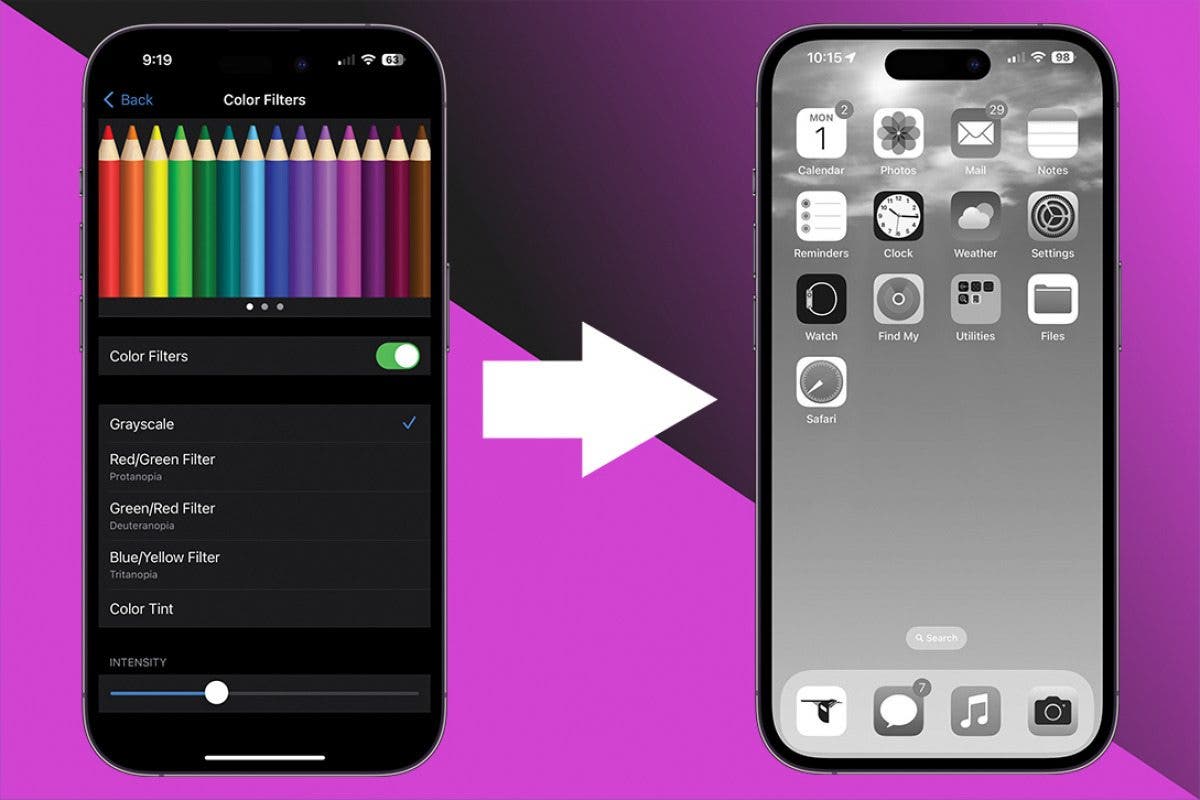
Remember that time you were scrolling through your phone at 2 AM, half-asleep, and suddenly realized you’d been staring at your screen like a digital vampire? Yeah, me too. The colors were too bright, the notifications too loud, and your eyes felt like they’d been sandpapered by a grumpy cat. That’s when I thought, What if I just… muted the chaos? Turns out, there’s a way to do that—no cat involved—and it’s called switching to grayscale.
Grayscale mode isn’t just for old-school photographers or people who think their phone looks better in black and white (though, let’s be honest, some of us do). It’s actually a genius hack for reducing eye strain, cutting down on distractions, and—if you’re anything like me—making your phone feel less like a neon billboard and more like a calm, boring spreadsheet. And the best part? It’s easier to turn on than deciding whether to order takeout or cook dinner.
Why Would You Even Want This?
Okay, let’s say you’re not a minimalist monk or someone who’s this close to throwing their phone out the window after another Instagram scroll. Maybe you just want to:
Must Read
- Save your eyes—because nothing says “I love my future vision” like staring at a screen that’s basically a disco ball.
- Stop getting distracted—colorful apps are sneaky little time thieves. Grayscale makes them look like boring old documents.
- Test your phone’s screen—if everything turns into a sad, monochrome mess, you might have a color calibration issue (or just a really bad mood).
- Be weird—because why not? Life’s too short for normal.
How to Flip the Switch (No Tech Degree Required)
Alright, let’s get into it. If you’re on an iPhone, here’s how to turn grayscale on—no jailbreak, no fancy apps, just pure, unfiltered iOS magic.
Method 1: The Quick Access Way (For When You’re in a Rush)
Swipe down from the top of your screen to open the Control Center. Look for the little grayscale icon—it’s usually a circle with a diagonal line through it (because nothing says “I’m boring” like a prohibition symbol). Tap it, and boom: instant mood ring for your phone.
Pro tip: If you don’t see it, don’t panic. Some iPhones hide it behind a few extra swipes. Just keep scrolling until you find it—or until you give up and accept that your phone is secretly a puzzle.
Method 2: The Settings Deep Dive (For When You Want to Be a Control Freak)
If you’re the type who likes to customize everything (or just really enjoy navigating menus like a detective), here’s the long way:
 How to Change Your iPhone Screen to Grayscale - YouTube
- Open Settings—you know, that app that’s always there but you only open when you’re really committed.
- Scroll down and tap Accessibility. Yeah, we’re going down the rabbit hole.
- Find Display & Text Size—because nothing says “I care about my eyes” like adjusting the text size while also turning your screen into a black-and-white film.
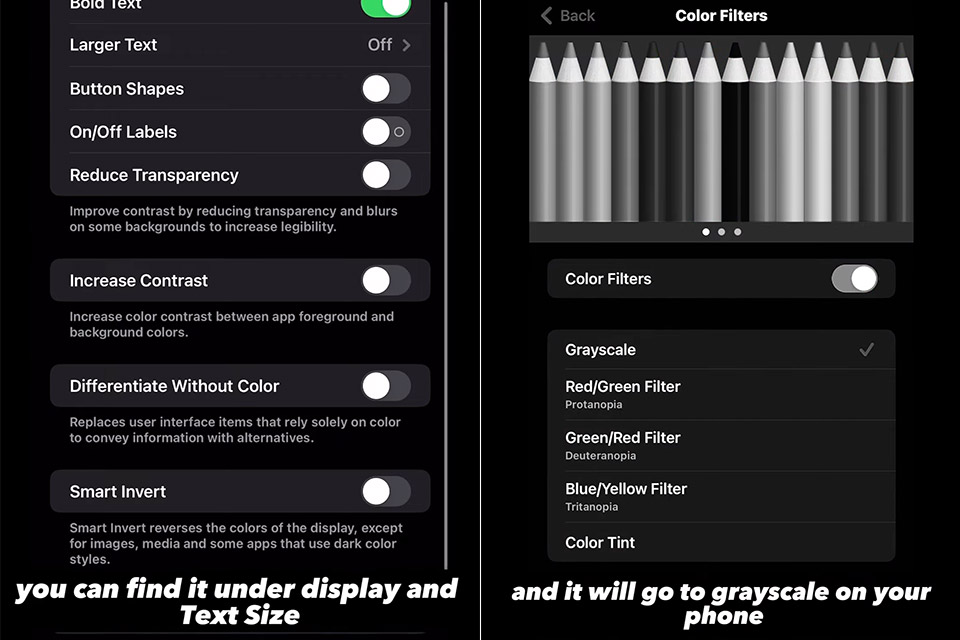
- Toggle on Color Filters. A menu will pop up, and you’ll see Grayscale—tap it, and suddenly your phone looks like it’s from the future… or a really old photo album.
There’s also a Grayscale Strength slider—because why make a choice? You can dial it up to “I’m a robot” or leave it at “I’m just tired of color.”
Method 3: The Shortcut Hack (For When You’re Lazy)
If you’re the kind of person who knows you’ll forget to turn it off later (or just want to make life easier), here’s a sneaky trick:
Go back to Settings > Accessibility > Display & Text Size, then tap Color Filters again. At the top, you’ll see a little i icon next to Grayscale. Tap that, and you can set it to turn on automatically when you plug in your headphones or use a specific app. Suddenly, your phone becomes a grayscale ninja—silent, stealthy, and always ready to save your eyes.
What Happens When You Turn It On?
First, you’ll feel a weird sense of accomplishment, like you’ve just solved a Rubik’s Cube without looking. Then, your phone will look like it’s been through a photo filter gone wrong—all the colors drain away, leaving you with a world that’s basically Mona Lisa but for your home screen.
 Iphone 11 Grayscale at Martin Clark blog
Apps will still work, but they’ll feel less distracting. That vibrant red notification? Now it’s just a sad, muted brown. That Instagram feed you usually binge-watch? Suddenly looks like a slideshow from your grandma’s vacation album. It’s like your phone got a personality transplant—calmer, less flashy, and maybe a little sad.
How to Turn It Off (Because Even Grayscale Needs a Break)
When you’re ready to bring the color back (or just want to see what you’ve been missing), just follow the same steps:
- Go to Settings > Accessibility > Display & Text Size.
- Toggle off Color Filters.
- Congrats, you’ve just unlocked the full spectrum of your phone’s vibrancy—like waking up from a long, boring nap.
Final Thoughts: Should You Do It?
Honestly? Try it. If you’re someone who scrolls for hours, works on your phone all day, or just wants to give your eyes a break, grayscale is a no-brainer. It’s not about making your life boring—it’s about making it less overwhelming.
And if you don’t like it? No big deal. Just turn it off and go back to living in a world of neon. But if you do? You might just find yourself reaching for your phone a little less often—and that’s a win in anyone’s book.
Now go forth, adjust your settings, and maybe—just maybe—give your eyes a little love.
