How To Log Out Of Devices On Facebook

Hey there, tech-savvy friend! Ever felt like you've got more tabs open in your life than a browser on a Saturday night? Yeah, we've all been there. Today, we're going to chat...
Hey there, tech-savvy friend! Ever felt like you've got more tabs open in your life than a browser on a Saturday night? Yeah, we've all been there. Today, we're going to chat about something super important yet often overlooked - logging out of devices on Facebook. Why, you ask? Well, grab a cuppa, get comfy, and let's dive in!
Why Bother Logging Out?
Imagine you're at a bustling café, and you've just finished a delightful chat with a friend. You wouldn't want the next person sitting at your table to overhear your private conversation, right? The same goes for your digital life. Logging out of Facebook keeps your personal stuff, well, personal.
Think about it like this: when you're logged in, anyone with access to that device can sneak a peek at your messages, photos, or even post on your behalf. Not cool, huh? Plus, it's like leaving your front door unlocked - you never know who (or what) might wander in.
Must Read
Who Needs to Log Out?
Let's clear the air here - everyone! Whether you're using your grandma's ancient desktop, your bestie's laptop at a sleepover, or that sketchy public computer at the library, it's always a good idea to log out when you're done.
Now, I know what you're thinking, "But I'm the only one who uses my phone/tablet/laptop!" Sure, that might be true, but what if your device gets stolen, or your little cousin decides to 'help' you 'fix' your computer? Trust me, it's better to be safe than sorry.
How to Log Out - The Super Simple Guide
Alright, now that we've established why logging out is crucial, let's talk about how to do it. Don't worry, it's as easy as pie (and I promise, I won't make any more dessert analogies... maybe).
 How to Log Out of Facebook on Other Devices - SocialAppsHQ
On a Computer
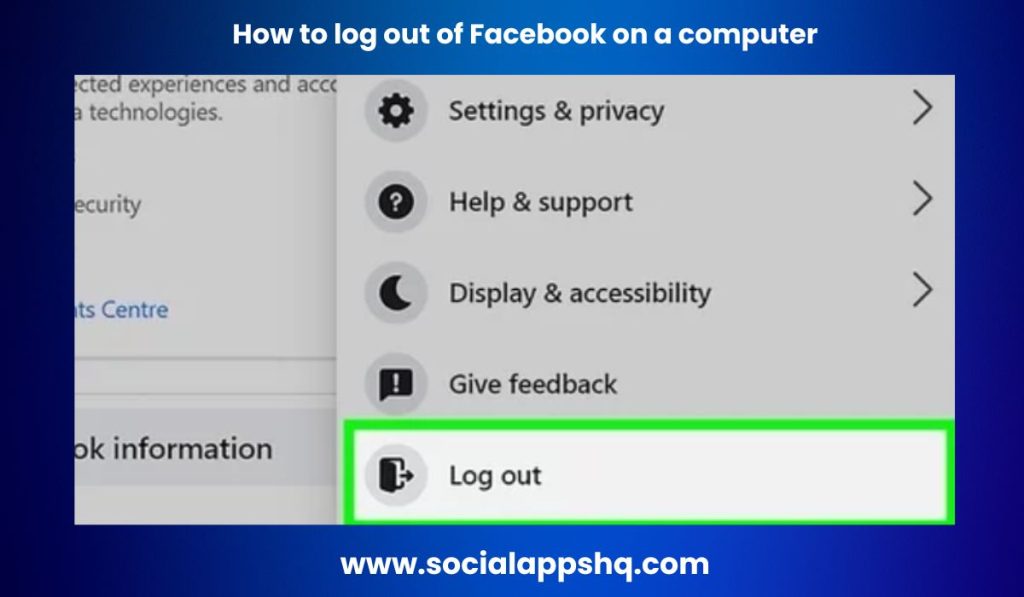
First things first, click on the little arrow next to the question mark (or the tiny gear icon, depending on your version) at the top right corner of your Facebook page. Then, click on 'Log Out'. Boom! Done.
If you're using a public computer, you might want to clear your browsing history and cookies too. It's like tidying up after a party - nobody likes a messy browser.
On a Mobile Device
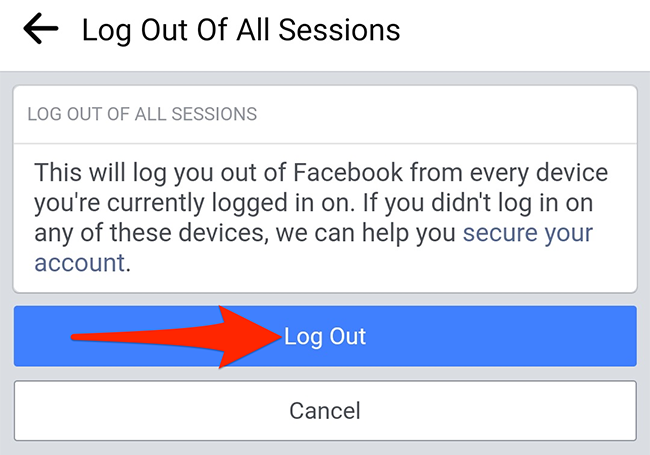
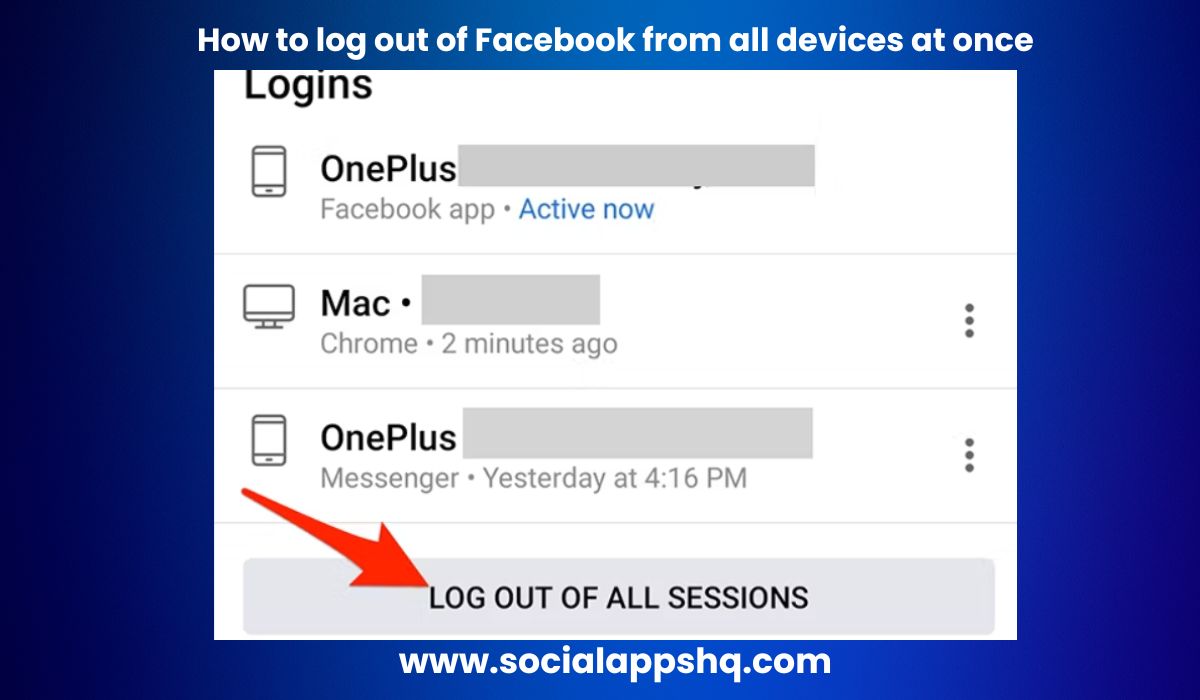
On the Facebook app, tap on the three lines (or the hamburger icon, if you're feeling fancy) at the top right corner. Scroll down and tap on 'Settings & Privacy', then 'Settings'. Under 'Security', tap on 'Security and Login Settings', then 'Where You're Logged In'. Here, you'll see a list of devices where you're logged in. Tap on 'Log Out' next to the devices you want to log out of.
 How to Log Out of Facebook on Other Devices - SocialAppsHQ
If you're using a public device, make sure to delete the app when you're done. It's like saying 'bye bye' to a friend - you don't want to leave them hanging, do you?
Bonus Tip: Use Two-Factor Authentication
While we're on the topic of security, let's talk about two-factor authentication. It's like having a bouncer at your digital door - nobody gets in without your say-so. To set it up, go to your Facebook settings, click on 'Security and Login', then 'Use two-factor authentication'. It's an extra step, but it's totally worth it for that extra layer of security.
And there you have it, folks! Logging out of devices on Facebook is as easy as pie (okay, I lied about the dessert analogies). So next time you're using a public device, or lending your phone to a friend, remember to log out. Your digital privacy will thank you!
