How To Logout Gmail On Android Phone

Picture this: You’re midway through your morning coffee, scrolling through Gmail like it’s your favorite TV show, when suddenly your phone buzzes with a notification. It’s a f...
Picture this: You’re midway through your morning coffee, scrolling through Gmail like it’s your favorite TV show, when suddenly your phone buzzes with a notification. It’s a friend asking if you saw that meme you swear you just replied to. Panic sets in—did you actually hit send, or did your phone just play a prank on you?
This is the kind of moment that makes you wonder: Why is my Gmail still logged in? It’s like leaving your front door unlocked while you’re out for ice cream—someone could walk in, right? But don’t worry, we’ve got your back. Logging out of Gmail on your Android phone is easier than remembering where you left your keys (and way less frustrating than dealing with a lost phone). Let’s make sure your inbox stays private, like your secret stash of snacks.
Why Should You Log Out?
Think of your Gmail account like your favorite pair of jeans—comfortable, familiar, and very personal. But just like you wouldn’t leave your jeans lying around for anyone to borrow, you shouldn’t leave your Gmail logged in on shared devices. Here’s why:
Must Read
First, privacy. If someone else picks up your phone—whether it’s a roommate, a curious kid, or a friend who really needs to borrow your charger—your emails, contacts, and even your Google Drive files are suddenly fair game. It’s like handing over the remote to a roommate who definitely won’t watch the same show as you.
Second, security. If your phone gets lost or stolen, a logged-out Gmail account is a lot harder to hack than one that’s wide open. Imagine if someone found your wallet with your credit cards and your Gmail password—yikes. Logging out adds a little extra lock to your digital door.
And third, peace of mind. There’s nothing worse than realizing you might have accidentally sent that work email to your entire team instead of just your boss. Logging out ensures you’re the only one in control—like having a do-not-disturb sign on your inbox.
How to Log Out of Gmail on Android: Step by Step
Alright, let’s get this done. It’s simpler than ordering takeout—no waiting, no regrets. Here’s how to log out of Gmail on your Android phone:
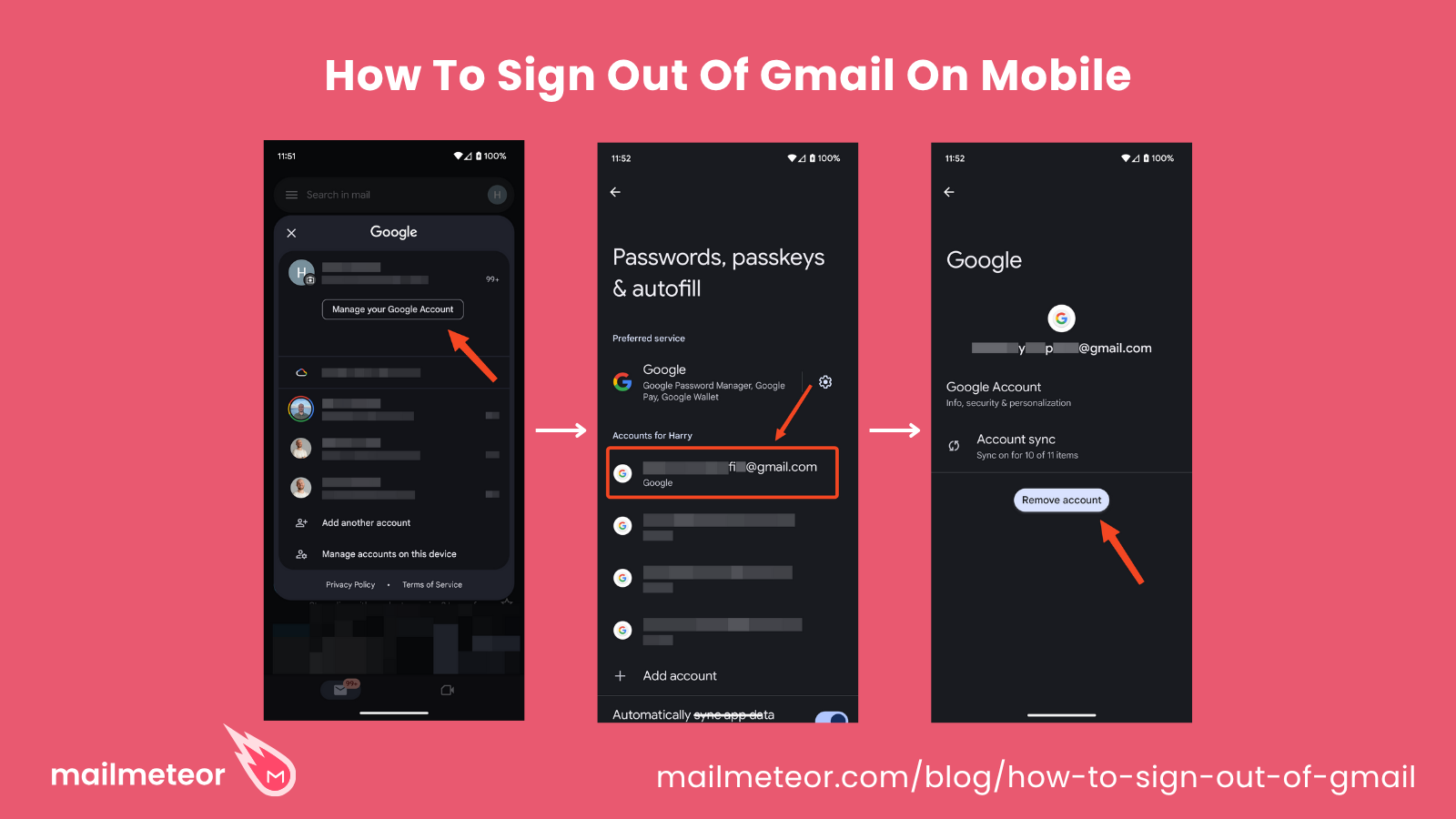
Step 1: Open the Gmail App
First things first, open the Gmail app like you’re about to check your messages. If you’re already logged in, you’ll see your inbox pop up right away. If not, you’ll be prompted to sign in—no worries, we’ll handle that later.
Step 2: Tap Your Profile Picture
At the top right corner of your screen, you’ll see a little circle with your profile picture (or initials if you don’t have one). Tap it—it’s like pressing the little button on your coffee mug to get your name right.
Step 3: Select "Manage Your Google Account"
From the menu that pops up, tap "Manage Your Google Account." It’s a bit of a mouthful, but think of it as the "Settings" button for your entire Google world—emails, photos, everything.
Step 4: Navigate to "Security"
Once you’re in your Google Account settings, scroll down until you see "Security." Tap it—it’s like flipping a switch to turn on the "keep out" sign for your digital stuff.
 How to sign out from gmail on android phone | Logout Google Account
Step 5: Find "Device Activity"
Under the Security tab, look for "Device Activity." This is where Google keeps track of all the places your account is logged in, like a guest list for your inbox. Tap it to see where your Gmail is currently active.
Step 6: Revoke Access to Your Android Phone
You’ll see a list of devices where your Gmail is logged in. Find your Android phone—it’ll probably have your phone’s name or model number. Tap the three-dot menu next to it and select "Remove." It’s like kicking someone off your Wi-Fi when they’re hogging all the bandwidth.
If you don’t see your phone listed, don’t panic. Sometimes it takes a second to update. Just try logging out again—it’s like restarting your Wi-Fi router when it’s being stubborn.
Step 7: Confirm and Log Out
Google will ask you to confirm—"Are you sure you want to remove this device?" Tap "Remove" again. And just like that, your Gmail is no longer logged in on your phone. You’ve just locked the front door to your digital home.
Pro Tips for Extra Security
Now that you’ve logged out, let’s make sure your Gmail stays safe like a vault. Here are a few extra steps to keep your account secure:
Enable Two-Step Verification. This is like adding a second lock to your front door. When you log in, Google will send a code to your phone—even if someone steals your password, they’ll need this code too. To set it up, go to Security > Two-Step Verification in your Google Account settings.
Use a Strong Password. Think of it like your secret handshake—something only you know. Avoid easy passwords like "123456" or "password." Mix in numbers, symbols, and uppercase letters. Tools like Google’s Password Checkup can help you create a strong one.
Check for Suspicious Activity. If you ever see a device you don’t recognize in your Device Activity, revoke access immediately. It’s like noticing a stranger lurking around your house—better safe than sorry.
 How to LOGOUT FROM GMAIL in Android Mobile (Updated) - YouTube
What If You Can’t Log Out?
Sometimes, tech can be as stubborn as a toddler refusing to take a nap. If you’re having trouble logging out, here are a few fixes:
Restart Your Phone. Sometimes a simple restart does the trick—like pressing the reset button on a stubborn microwave. Just turn it off, wait 30 seconds, and turn it back on.
Clear Cache and Data. If the app is acting up, go to Settings > Apps > Gmail > Storage > Clear Cache and Clear Data. It’s like giving your phone a quick clean—no junk, just smooth sailing.
Update the Gmail App. Outdated apps can be glitchy, like an old video game that won’t load. Go to the Google Play Store, find the Gmail app, and tap "Update." Easy peasy.
Contact Google Support. If nothing works, Google’s support team is like the IT guy at your workplace—they’ve seen it all. Visit support.google.com for help.
Final Thoughts: Keep Your Inbox Safe and Sound
Logging out of Gmail on your Android phone is one of those little things that makes a huge difference in keeping your digital life secure. It’s like locking your bike when you leave it outside—it takes two minutes, but it prevents a whole lot of headaches later.
Think of it this way: You wouldn’t leave your house keys under the doormat, right? So why leave your Gmail wide open for anyone to peek? A few quick taps, and you’re good to go—secure, private, and ready to tackle your inbox like a pro.
Now go ahead and log out. Your future self (and your privacy) will thank you. And if you ever forget, just remember: better safe than sorry—just like when you double-check the stove before leaving the house.
