How To Outline Text On Google Slides

Alright, gather 'round, folks. I've got a tale to tell about a little something called outlining on Google Slides. Now, I know what you're thinking, "Oh boy, here we go again,...
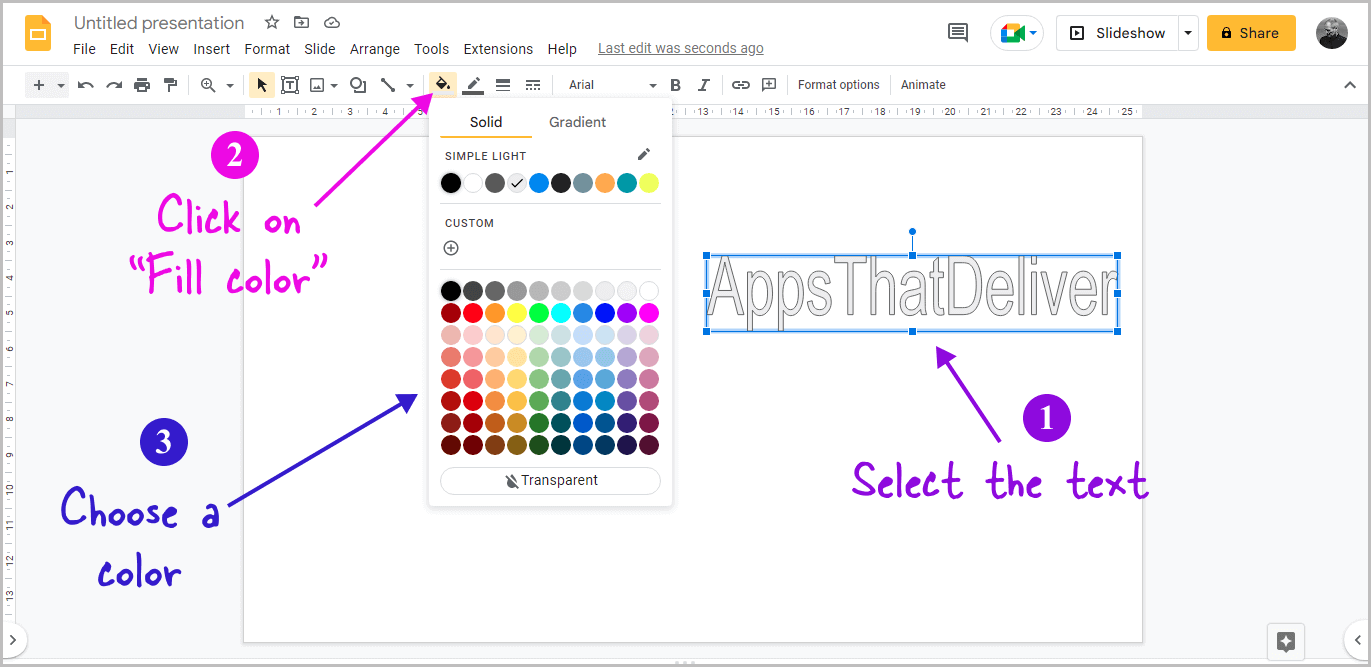
Alright, gather 'round, folks. I've got a tale to tell about a little something called outlining on Google Slides. Now, I know what you're thinking, "Oh boy, here we go again, another boring tech tutorial." But hold onto your hats, because this ain't your grandma's PowerPoint. We're talking about the digital equivalent of drawing a mustache on the Mona Lisa - with a twist of comedy, a dash of surprise, and a whole lot of "Why didn't I think of that?"
First Things First: Why Outline?
You might be wondering, "Why on Earth would I want to outline my slides? Isn't that what high school essays are for?" Well, my friend, outlining your slides is like having a roadmap to your presentation. It keeps you from veering off into the wilderness of tangents and ensures you hit all the key points. Plus, it's like having a secret cheat sheet - you can scribble down all those funny jokes you think of at the last minute without anyone knowing you're winging it.
Let's Get Started: The Basics
Now, before we dive into the fun stuff, let's get the boring bits out of the way. To outline your slides, you'll need to be in Edit mode. Click on that little pencil icon in the top right corner, and voila! You're now in the driver's seat. But don't worry, if you crash, there's no airbag to deploy - just a gentle nudge from Google to try again.
Must Read
Next, click on the slide you want to outline. See that little outline icon on the right side of the screen? That's your new best friend. Click on it, and suddenly, your slide is transformed into a blank canvas, ready for your masterpiece.
Now, Let's Get Weird: The Fun Stuff
Alright, now that we've got the basics down, let's kick things up a notch. Did you know you can add shapes to your outline? That's right, folks. We're talking circles, squares, triangles - the works. It's like playing with digital building blocks, but with a fraction of the cleanup.
But wait, there's more! You can also add images to your outline. That's right, you can turn your outline into a slideshow of your vacation photos. Just don't blame me when your boss asks why you're presenting a slideshow of your trip to the Bahamas instead of the quarterly report.
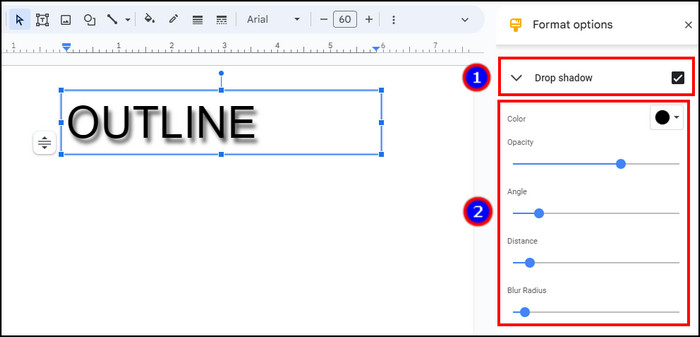 Outline Letters in Google Slides [Highlight Your Text]
Color Me Impressed: Text Boxes
Now, let's talk about text boxes. You can add them to your outline, fill them with color, and move them around like little digital magnets. It's like playing with digital Post-it notes, but without the sticky residue on your fingers. And the best part? You can resize them, rotate them, and even make them transparent. It's like magic, but with a lot less rabbits and a lot more pixels.
But here's where things get really interesting. You can group your text boxes together. That's right, folks. You can create little families of text boxes, moving them around as one. It's like playing with digital LEGO blocks, but with a fraction of the step-on-a-LEGO-in-the-middle-of-the-night pain.
Surprise, Surprise: The Hidden Gem
Now, I've saved the best for last. Are you ready for a surprise? You can actually animate your outline. That's right, folks. You can make your text boxes, shapes, and images dance, twirl, and zoom across the screen. It's like turning your presentation into a digital Broadway show, but with a fraction of the applause and none of the standing ovations.
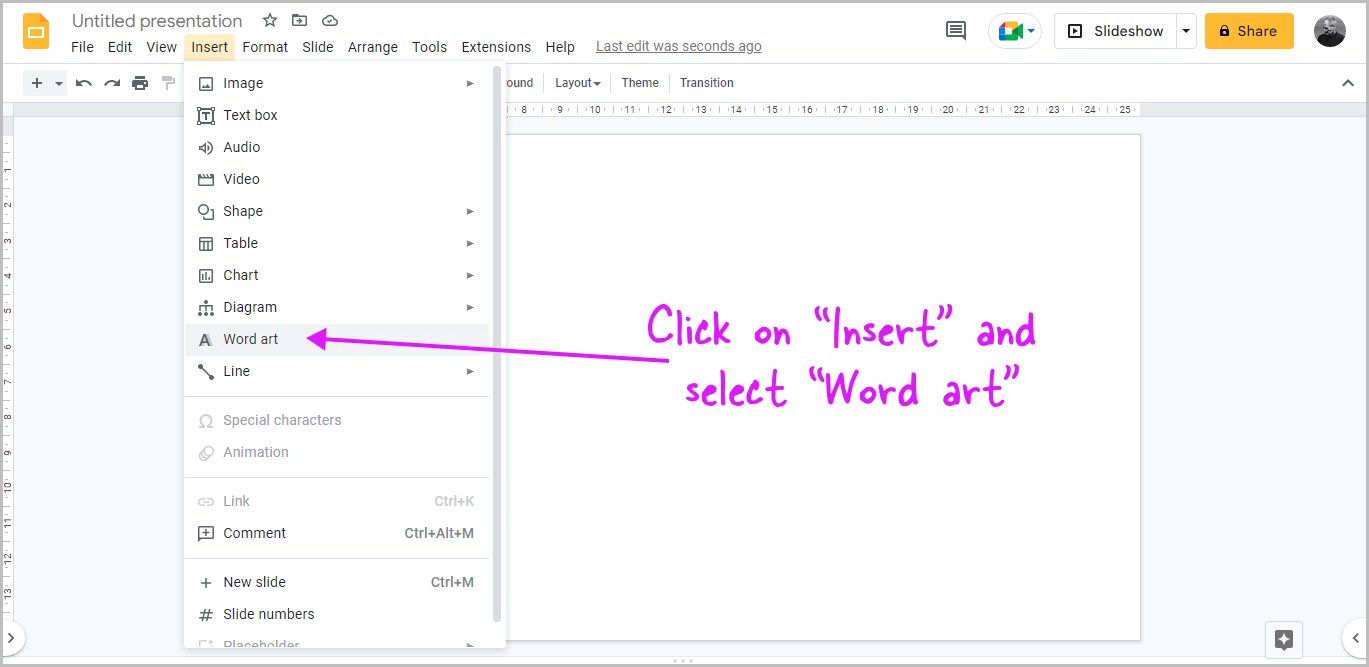 How to Outline Text in Google Slides [QUICK & EASY]
But here's the kicker - it's super easy to do. Just click on the little arrow next to your outline, and you'll see a whole menu of animations to choose from. It's like playing with digital fireworks, but with a lot less risk of setting your cat on fire.
And That's a Wrap!
And there you have it, folks. You're now a certified Google Slides outlining master. You can outline like a pro, add shapes, images, and text boxes, and even animate your way to presentation glory. So go forth, young Padawan, and make your presentations the best they've ever been. And remember, if all else fails, you can always blame the dog. They never know what you're talking about anyway.
Word count: 750
