How To Reset An Iphone From A Computer

Alright, folks! Let's dive into something that might seem a tad techy, but I promise, it's as easy as brewing your morning coffee. We're talking about resetting your iPhone fr...
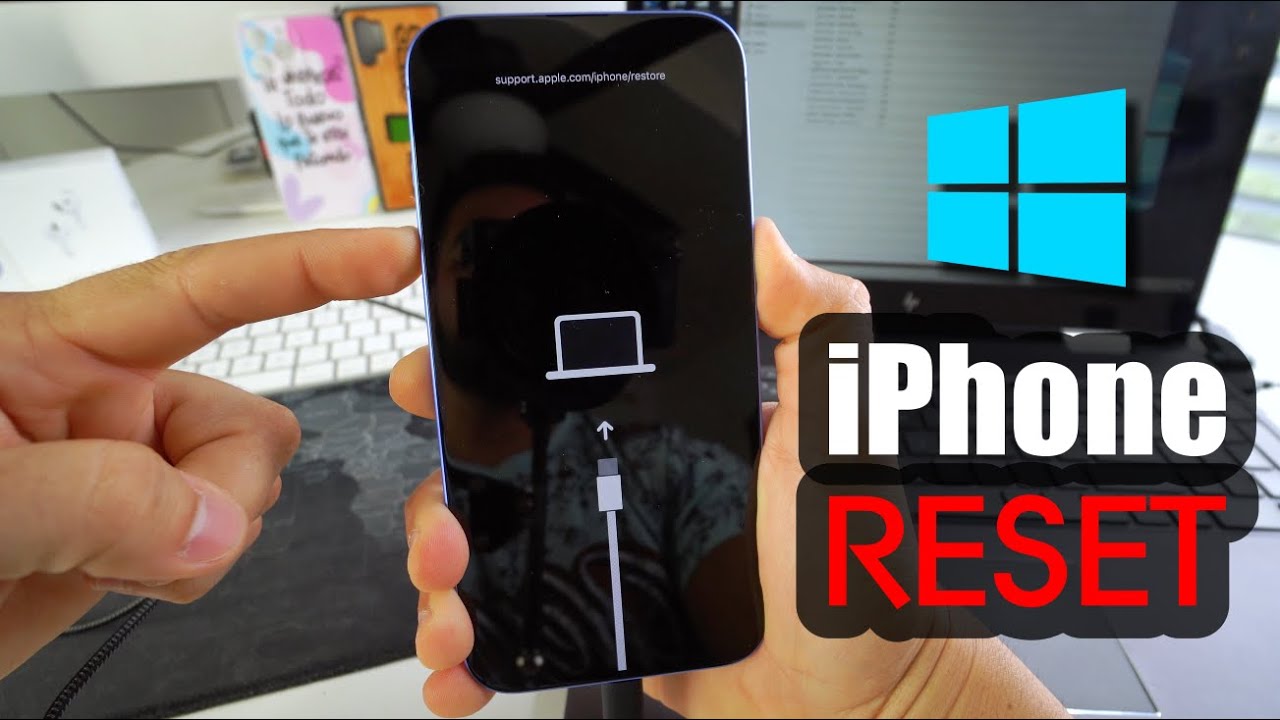
Alright, folks! Let's dive into something that might seem a tad techy, but I promise, it's as easy as brewing your morning coffee. We're talking about resetting your iPhone from your computer. Why, you ask? Well, imagine you've got a recipe you love, but you've added too much salt. You can't just pick out the excess, right? You've gotta start fresh. Same goes for your iPhone when it's acting up. Let's get it back to its pristine, just-out-of-the-box state.
Why Bother Resetting?
Now, you might be thinking, "Why would I want to reset my iPhone? I've got all my apps and data just the way I like them!" Well, hold your horses. Resetting isn't about losing your data (though we'll talk about backing it up later). It's about giving your iPhone a clean slate, a fresh start. This can help fix those pesky glitches, improve performance, and even help sell it later if you're planning an upgrade.
Think of it like when you're cooking and you realize you've used the last of the milk. You can't just magically make more appear, right? So, you start over with a new recipe. Resetting your iPhone is like that. It's a fresh start, a new recipe, if you will.
Must Read
Before We Begin
Before we dive into the reset process, there are a couple of things you should do. First, make sure your iPhone is backed up. You can do this using iCloud or iTunes on your computer. It's like taking a snapshot of your iPhone's current state. That way, if anything goes wrong (which it won't, 'cause we're gonna take it slow), you can always go back to this snapshot.
Next, connect your iPhone to your computer using the USB cable. Make sure iTunes is open and running. If it's not, go ahead and launch it. It's like inviting your friend over before you start cooking. You want everything ready and set up.
Let's Get Cooking!
Alright, now that we're all set up, let's start the reset process. First, select your iPhone in iTunes. You should see it under the 'Devices' heading. Once you've clicked on it, you'll see a summary of your iPhone. Here, click on the 'Summary' tab if it's not already selected.
 How To Factory Reset Iphone 11 On Computer - Dibujos Cute Para Imprimir
Now, here's where the magic happens. Look for the 'Restore iPhone' button. It's usually in the middle of the screen, right under the 'Manually Back Up and Restore' section. Click on it, and iTunes will ask if you're sure. Say yes, and iTunes will start downloading the latest iOS software for your iPhone.
While iTunes is doing its thing, you can sit back, relax, and maybe even put on some music. It's like waiting for your cake to bake. You can't rush it, but you can enjoy the anticipation.
Once the download is complete, iTunes will ask if you want to set up your iPhone as new or restore it from a backup. If you've backed up your data (which you should have, remember?), select 'Restore from Backup'. Then, choose the most recent backup and click 'Continue'.
 How to Restore an iPhone with iTunes (PC and Mac)
And there you have it! Your iPhone is now as good as new. It's like you've just baked a fresh batch of cookies. Sure, it took a bit of time, but the result is worth it. Your iPhone should be running smoother than ever.
And That's a Wrap!
So, there you have it, folks! Resetting your iPhone from your computer is as easy as baking a cake. It might seem intimidating at first, but with a little patience and the right instructions, anyone can do it. Just remember, it's all about giving your iPhone a fresh start, a clean slate. And who knows? You might just find that your iPhone runs better than ever before.
Happy resetting, and until next time, keep your tech running smooth as butter!
