How To See Full Card Info On Chase App

Ever found yourself swiping through your Chase app, wondering, "How can I see all the nitty-gritty details of this transaction?" It's like trying to read a book through a keyh...
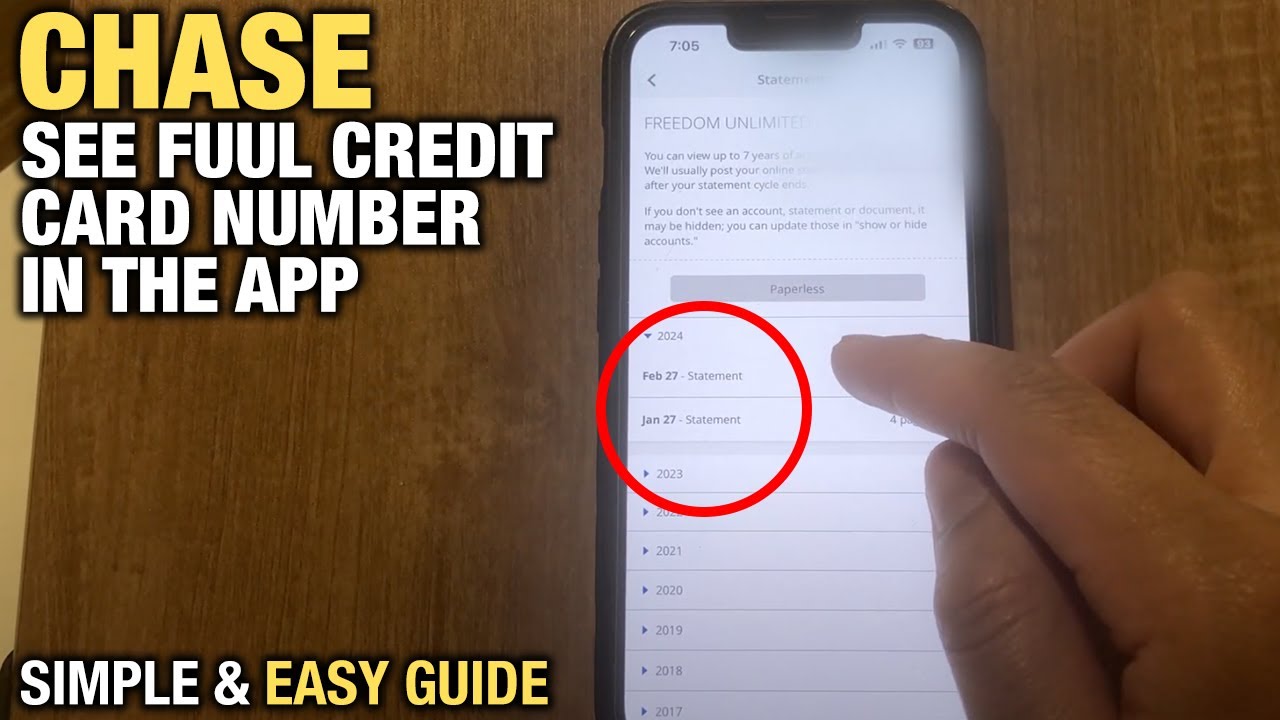
Ever found yourself swiping through your Chase app, wondering, "How can I see all the nitty-gritty details of this transaction?" It's like trying to read a book through a keyhole - you can make out the shape, but you want to dive into the full story, right?
Unlocking the Full Picture
Imagine you're at a museum, standing in front of a painting. You can see the main subject, but to truly appreciate it, you need to read the description card. Same goes for your Chase app. Those quick-glance transactions are like the painting, and the full card info is the description card.
Let's Get Started
First things first, make sure you're on the latest version of the Chase app. It's like having the newest guidebook when you're exploring a city - you get all the latest info and cool features.
Must Read
Now, let's say you've spotted a transaction that's piqued your curiosity. Tap on it, just like you would tap on a painting to get a closer look.
Diving Deeper
Once you're in the transaction details, you'll see a summary at the top. It's like the title of the painting - it gives you a quick idea of what you're looking at. But we want more, don't we?
Scroll down a bit, and you'll see a line that says "Show Details". It's like the 'Read More' link at the end of a blog post. Tap on it, and boom - you've just unlocked the full card info.
Now We're Talking
The full card info is like a treasure trove of details. You'll see the transaction date, the amount, and the merchant name, of course. But you'll also find the location of the merchant, the last four digits of the card used, and even a map showing where the transaction took place.
 What Is A Bank Statement Chase Infoupdate - Free Word Template
It's like going from a black and white sketch to a vibrant, full-color painting. Suddenly, that mysterious 'Walmart' transaction becomes 'Walmart #4123, 1234 Main St, Anytown'.
But Wait, There's More
If you're still hungry for more info, keep scrolling. You'll find a section called 'Additional Details'. It's like the extra features section in a DVD menu - you might not need it, but it's there if you want to geek out.
Here, you'll find even more nitty-gritty details, like the transaction type (was it a purchase, a refund, or a charge?), the reason code (why was the transaction processed?), and the network (was it processed on Visa, Mastercard, or another network?)
Why Bother?
You might be thinking, "Why should I care about all this info?" Well, let me ask you this - have you ever looked at your statement and thought, "What on earth is this charge?"
With the full card info, you can say goodbye to mysterious charges and hello to peace of mind. It's like having a personal detective in your pocket, ready to solve the case of the mysterious 'Amazon' charge.
 How to find card info on CHASE app l Double Z - YouTube
Security First
But wait, you might be worried about security. "What if someone else sees my full card info?" Fear not, dear reader. The Chase app has got you covered.
First off, you need to unlock your app with a passcode, fingerprint, or facial recognition. It's like having a secret password to a hidden treasure room - no one else can get in without it.
Second, the full card info only shows up when you're actively looking at it. It's not just sitting there, out in the open. It's like a secret message that only appears when you shine a special light on it.
So, What Are You Waiting For?
Next time you're swiping through your Chase app, give the full card info a try. It's like unlocking a secret feature in your favorite video game - suddenly, the app feels like a whole new place.
And who knows? You might just find out that your mysterious 'Amazon' charge was actually a long-lost relative sending you a gift. Stranger things have happened, right?
