Add Google Calendar To Iphone Calendar

Hey there, tech-savvy friend! Let's chat about something that's been bugging you, right? You've got your shiny iPhone, and you're loving it. But wait, you've got multiple cale...
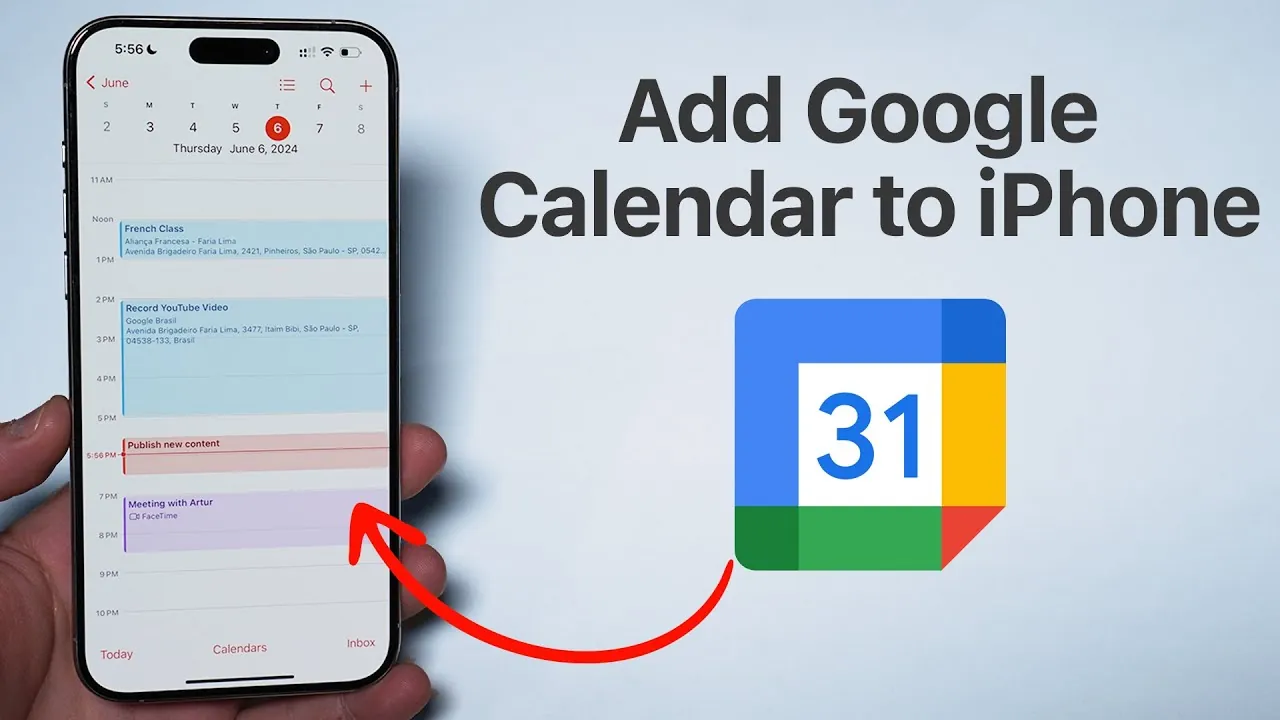
Hey there, tech-savvy friend! Let's chat about something that's been bugging you, right? You've got your shiny iPhone, and you're loving it. But wait, you've got multiple calendars, and it's starting to feel like you're juggling flaming chainsaws. Don't worry, we've all been there. Today, we're going to make your life a whole lot easier by adding Google Calendar to your iPhone calendar. Sound good? Let's dive in!
Why Bother, You Ask?
I know, I know, you're thinking, "But I've got the iPhone calendar, isn't that enough?" Well, sure, it's great. But Google Calendar? That's like having a personal assistant who never sleeps, never forgets, and can juggle more tasks than a circus clown. It syncs across all your devices, it's got reminders that'll make your iPhone sound like a foghorn (if you want it to), and it plays nice with other apps. Plus, it's got this nifty thing called 'Invitations' that'll make you the most organized person in your friend group. Intrigued? Thought so.
Let's Get Started!
Alright, let's not beat around the bush. Here's how you add Google Calendar to your iPhone calendar. Ready? Let's go!
Must Read
First things first, you need to have the Google Calendar app on your iPhone. If you don't, well, what are you waiting for? Go grab it from the App Store. It's free, by the way. None of this 'pay to organize your life' nonsense.
Once you've got the app, open it up. You'll see a bunch of calendars already there. Those are your Google Calendars. But we want to add them to your iPhone calendar, right? So, here's what you do:
- Tap on the profile icon in the top right corner. It looks like a little person.
- Tap on 'Settings' at the bottom of the screen.
- Scroll down and tap on 'Add account' (yes, we're adding an account to an account. It's like Inception, but with calendars).
- Tap on 'Google'.
- Sign in with your Google account. If you've forgotten your password, now's the time to reset it. Don't worry, I'll wait.
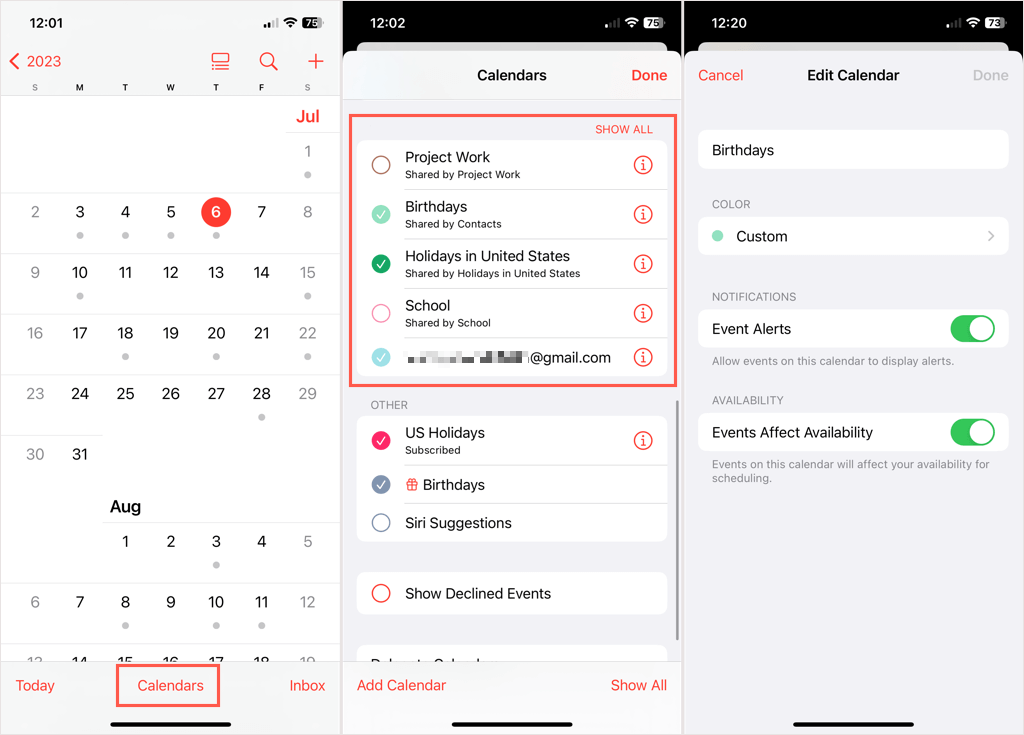 How to Add and Sync Google Calendar to Your iPhone and iPad
- Once you're signed in, tap on 'Allow' when it asks for permissions. It's just giving Google Calendar permission to do its thing on your iPhone.
- Now, here's where the magic happens. You'll see a list of your Google Calendars. Tap on the ones you want to add to your iPhone calendar.
- Tap 'Done'.
And there you have it! Your Google Calendars are now added to your iPhone calendar. Wasn't that easy? I mean, sure, it was a few steps, but it was worth it, right?
But Wait, There's More!
You might be thinking, "That's great, but how do I see these calendars in my iPhone calendar app?" Good question! Here's how:
Open up your iPhone calendar app. You'll see all your calendars listed on the left side. Scroll down, and you should see your Google Calendars there. Tap on the ones you want to see. They'll turn blue, and now you can see your Google Calendar events right there in your iPhone calendar.
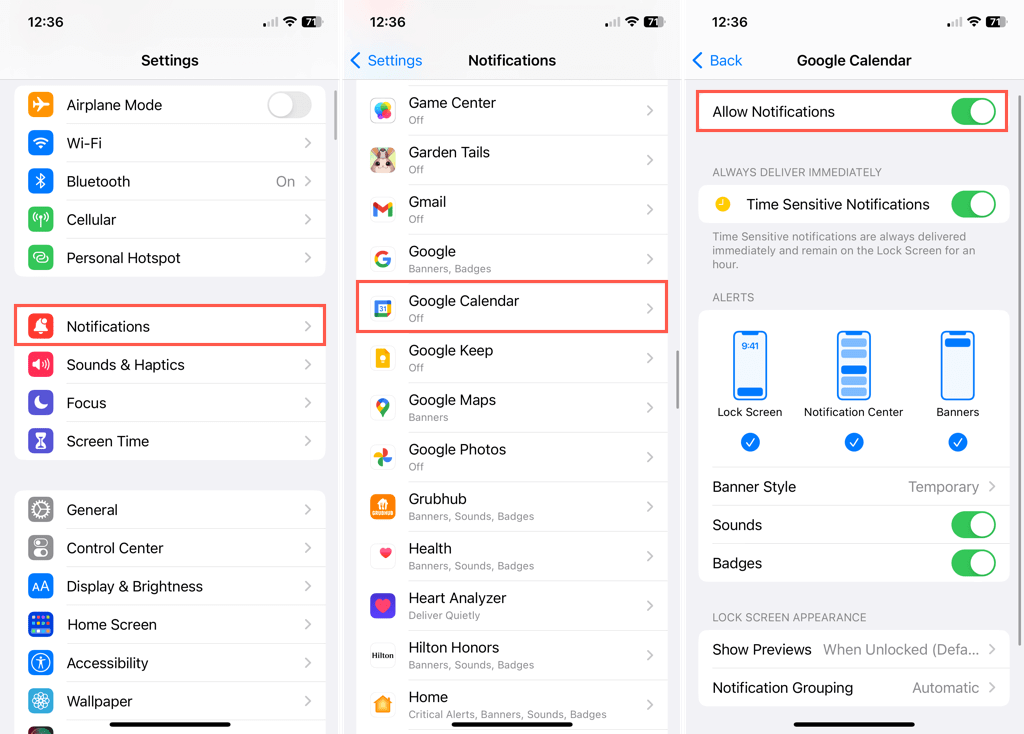 How to Add and Sync Google Calendar to Your iPhone and iPad
Pretty neat, huh? But wait, there's even more! You can change the color of your Google Calendars to make them stand out. Here's how:
- In the iPhone calendar app, tap on 'Calendars' at the bottom.
- Tap on 'Edit' in the top left corner.
- Tap on the Google Calendar you want to change the color of.
- Tap on the color square next to 'Calendar Color'.
- Choose a color that makes your heart happy. I won't judge. Much.
- Tap 'Done'.
And there you have it! Your Google Calendar is now all set up on your iPhone. You're organized, you're efficient, and you're ready to take on the world. Or at least, your next meeting.
So, what do you think? Wasn't that a breeze? I mean, sure, it was a few steps, but it was worth it, right? Now go forth and conquer your schedule! And if you ever get stuck, you know where to find me. Happy organizing!
